How to Add a Confidential Watermark to a PDF
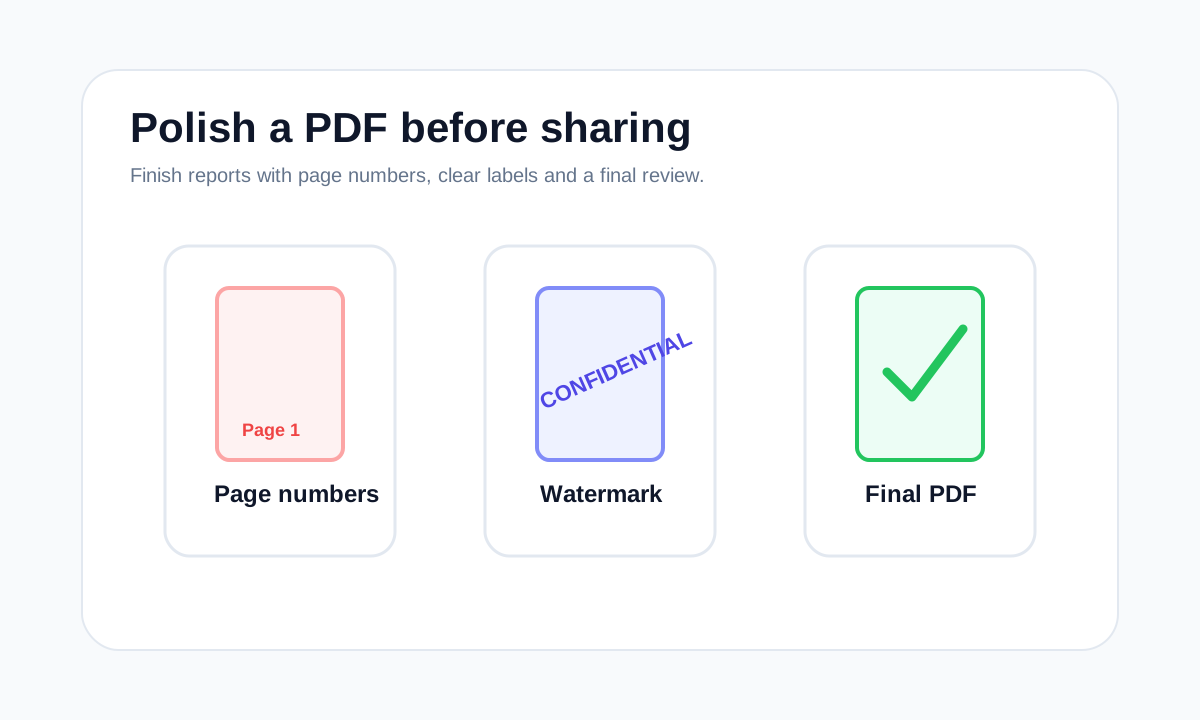
A watermark labels a document visually. It is useful for drafts and confidential copies, but it is not the same as password protection.
Quick answer
What you need to know first
Upload the PDF, choose a text watermark such as Confidential, set opacity and position, then download the watermarked PDF.
- 1Open Watermark PDF.
- 2Upload the document.
- 3Enter the watermark text.
- 4Adjust opacity, position and rotation.
Watermarks communicate status
A Confidential, Draft or Review watermark tells readers how the document should be treated. It is a visual label that travels with the page.
It does not encrypt the file. If the PDF contains sensitive information, use password protection as well when appropriate.
Make the watermark visible but readable
A watermark should be visible without making the document impossible to read. Lower opacity and diagonal placement often work well for drafts.
Open PDF security tools
Protect PDFs with real encryption or unlock files when you know the password.
Watermark PDFFAQ
Common questions
Does a watermark stop copying?
No. A watermark is visible content, not access control.
Should I also protect the PDF?
Use Protect PDF when the file should require a password to open.
Editorial note
LiftPDF Editorial Team
LiftPDF articles are written against the behavior of the public LiftPDF tools. We avoid fake expert bylines, invented claims and workflows that the product cannot actually perform.
Published Jul 17, 2026. Last updated Jul 17, 2026.