Upload a PDF
Choose your PDF file from the device or drop it into the upload area.
Free online PDF tool
Compress a PDF locally with QPDF WASM modes for lossless optimization, balanced compression or stronger image-aware reduction.
Drop your file here or choose files. Upload one PDF file and rebuild it with safe client-side compression.
Choose a real QPDF compression mode. The result depends on how the PDF is built: image-heavy files usually shrink more than already optimized text PDFs.
Visual guide
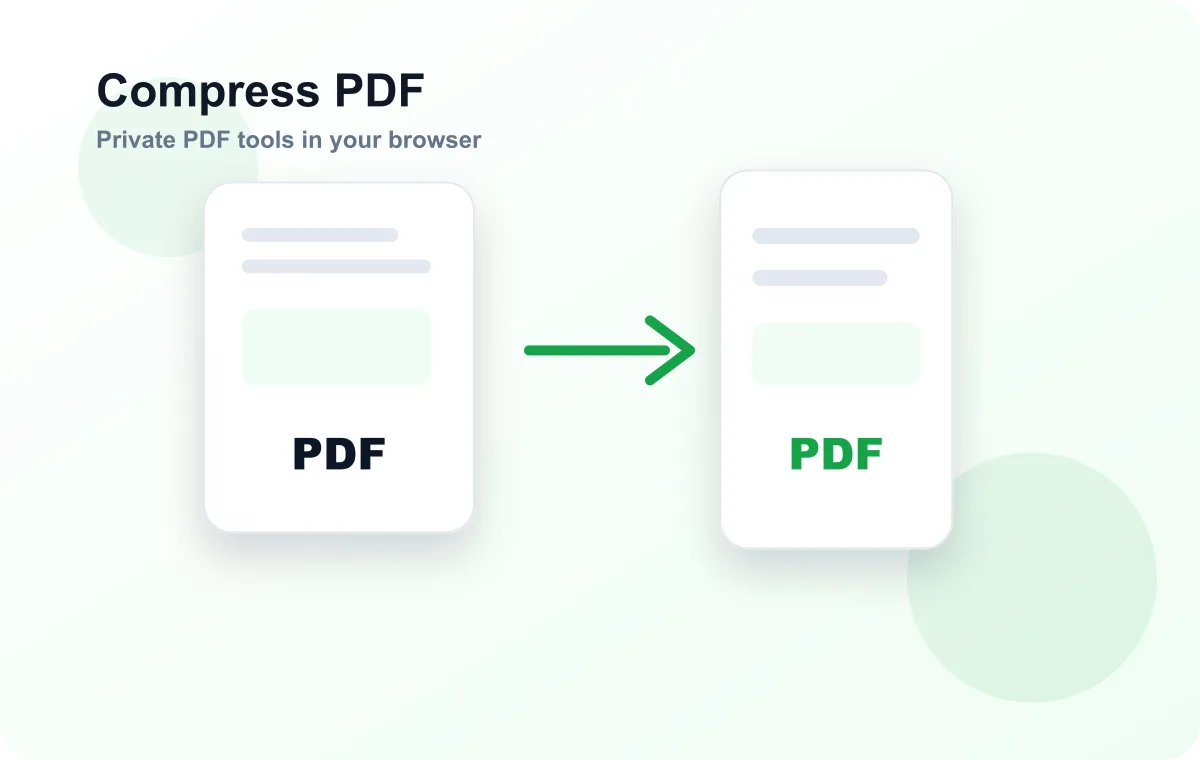
Use the preview as a mental model: choose files, adjust only the settings that matter, then download the final document or image output. The workflow is designed to stay simple even with many pages.
Simple workflow
Choose your PDF file from the device or drop it into the upload area.
Check the file summary, pages or options before starting the operation.
Compress PDF runs in the browser and prepares the new file locally.
Download the compressed PDF and compare original and final file sizes.
Practical reasons
Optimize a PDF locally with QPDF WASM when you need a smaller browser-generated file.
The workflow runs locally in your browser, which keeps everyday documents private and avoids an upload queue.
Use the tool from modern desktop and mobile browsers without installing a PDF app.
Built for everyday files
The file is processed on your device with client-side PDF libraries.
Review the file, pages or selected options before downloading the result.
Use the tool without sign-in, subscriptions or trial walls.
The upload, options and download states remain usable on small screens.
Downloaded files use readable names instead of generic output.pdf labels.
Invalid files, unsupported states and empty selections are reported clearly.
Perfect for
Prepare class documents, notes and shared materials without desktop software.
Handle receipts, contracts, reports and client documents in a quick browser workflow.
Prepare files for portals, email attachments and formal submissions.
Adjust visual documents, proofs or exported PDF pages before sharing them.
Work with tickets, scans, confirmations and archives from your own device.
Complete small PDF fixes from a phone or tablet when you are away from a computer.
Complete guide
LiftPDF uses QPDF WASM to optimize streams, object structure and, in stronger modes, image compression where the engine can do so. The file still stays in the browser.
You can also remove standard PDF metadata during compression when privacy matters. The tool reports the real output size after compression and does not promise an exact 1 MB or 2 MB target because that would require a heavier downsampling loop.
Remove unnecessary pages before compressing and avoid converting high-resolution images into PDFs unless they are needed. The biggest file-size wins usually come from simplifying the source document.
Privacy comparison
Keep working
LiftPDF compresses PDFs in your browser with QPDF WASM. Choose Preserve quality, Balanced or Strong compression, optionally remove document metadata, then compare the original and final file size before downloading.
LiftPDF provides Preserve quality, Balanced and Strong modes. Preserve quality focuses on lossless PDF optimization, while Balanced and Strong can optimize large images when QPDF can do so safely.
No. The current browser engine does not guarantee exact target sizes. It reports the real output size after compression instead of promising a fixed number.
Not always. Some PDFs are already optimized, and LiftPDF will show a clear message when the rebuilt file is not smaller.
Preserve quality avoids intentional quality loss. Balanced and Strong may change image compression on image-heavy PDFs to reduce file size.
Yes. Enable Remove document metadata to ask QPDF to remove standard PDF info and XMP metadata such as title, author, subject, keywords, creator and producer when it can do so safely.
No. Compression runs client-side in your browser with QPDF compiled to WebAssembly.
Password-protected PDFs must be unlocked first. Use Unlock PDF, then compress the unlocked copy.
Keep working with tools that match this PDF workflow.
Combine multiple PDF files into one document.
Extract selected pages or split every page.
Export every PDF page as a high-quality JPG image.
Convert PDF pages into sharp PNG images.
Rotate individual pages or all pages at once.
Add custom page numbers with position and style controls.
Private by design
LiftPDF is built around local browser processing. For the available tools, files are read by your browser, processed on your device and downloaded back to you.
The current tools process files in your browser using client-side PDF and image libraries.
Your selected documents do not need to be sent to a LiftPDF conversion server.
Sensitive files stay on your device during conversion, editing and export.
Protect and Unlock PDF use QPDF compiled to WebAssembly for local encryption tasks.
No server upload
You choose files in your browser.
PDF.js, pdf-lib or QPDF WASM runs the task locally.
The result is created for you to save.