How to Convert Receipts to PDF
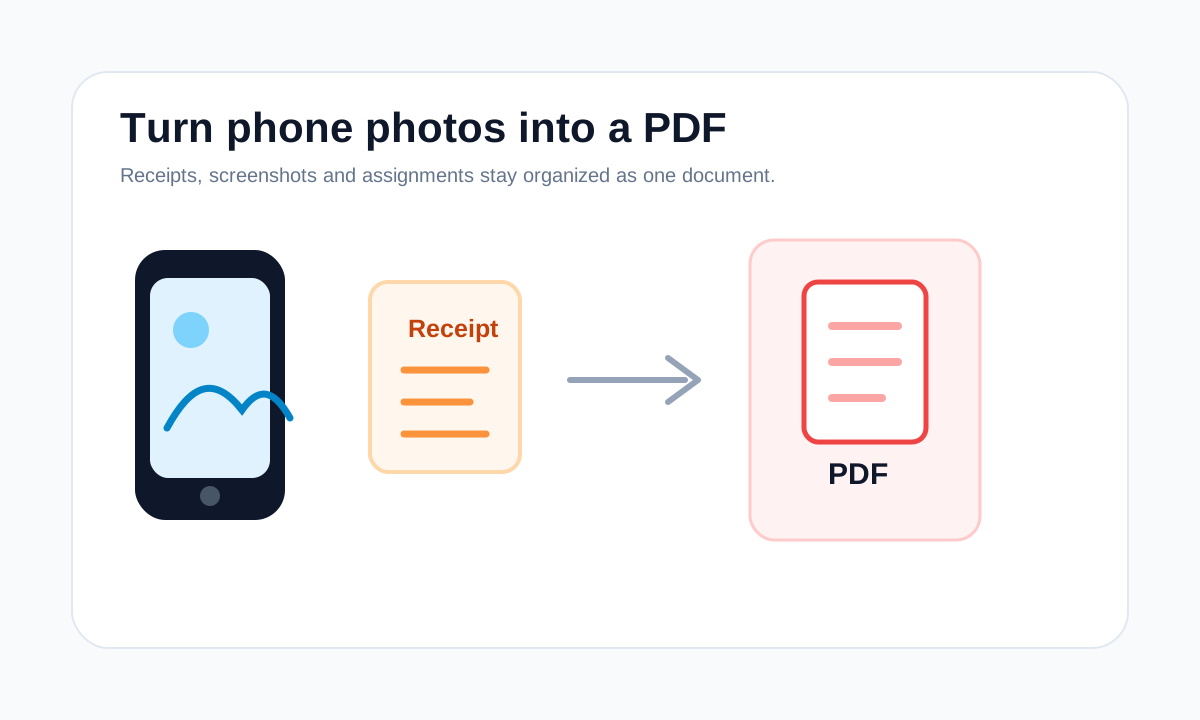
Receipt PDFs are easiest to review when photos are clear, cropped, ordered and exported as one document instead of loose images.
Quick answer
What you need to know first
Use the original receipt photos, add them in date or expense order, keep margins small and export one PDF for submission.
- 1Retake blurry or dark receipt photos.
- 2Add receipt images in the right order.
- 3Use Fit so no edges are cut off.
- 4Download one PDF for your expense workflow.
Receipts need clarity more than beauty
A receipt PDF should make totals, dates, merchant names and tax details readable. If the source photo is blurry or cropped, converting it to PDF will not fix the missing information.
For expense reports, one organized PDF is usually easier to review than a set of separate photos.
Order and naming matter
Put receipts in the same order as the expense report or reimbursement form. This makes review faster and reduces back-and-forth questions.
Open image PDF tools
Convert JPG, PNG and PDF pages while keeping quality tradeoffs visible.
Convert images to PDFFAQ
Common questions
Should receipt photos be JPG or PNG?
Phone receipt photos are usually JPG. PNG is fine for screenshots or digital receipts.
Can LiftPDF read receipt totals automatically?
No. LiftPDF creates the PDF document; it does not perform receipt OCR or accounting extraction.
Editorial note
LiftPDF Editorial Team
LiftPDF articles are written against the behavior of the public LiftPDF tools. We avoid fake expert bylines, invented claims and workflows that the product cannot actually perform.
Published Jul 17, 2026. Last updated Jul 17, 2026.