How to Keep Original Image Quality in PDF
To keep original quality, avoid unnecessary resizing. Match the PDF page to the image when possible and use the cleanest source JPG.
Quick answer
What you need to know first
To keep original quality, avoid unnecessary resizing. Match the PDF page to the image when possible and use the cleanest source JPG.
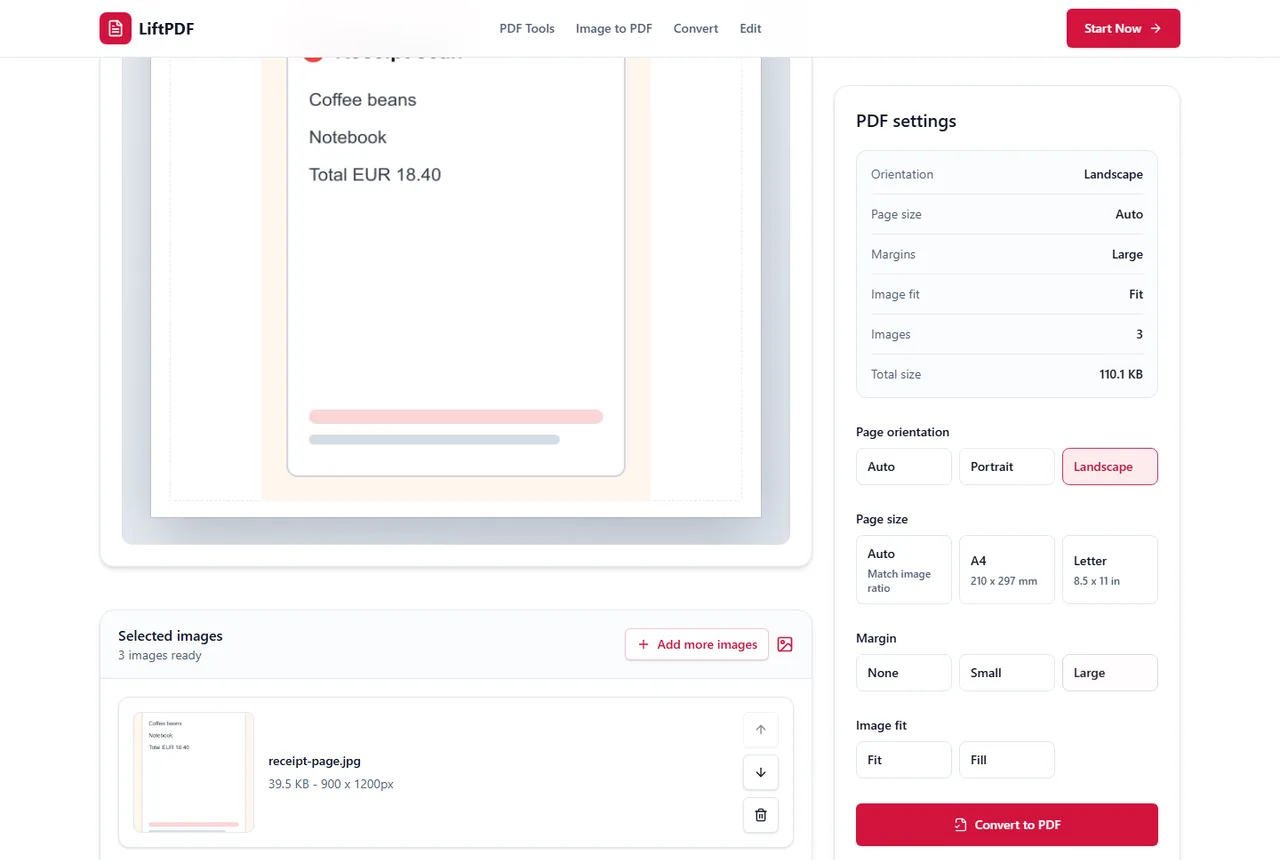
- 1Start with the original JPG file.
- 2Use Auto page size for natural image dimensions.
- 3Use None or Small margin depending on the document.
- 4Use Fit unless edge-to-edge cropping is intentional.
How to keep the PDF looking sharp
The final PDF can only be as sharp as the source JPG. Start with the highest-resolution original image you have, avoid screenshots of screenshots, and do not repeatedly resave the same JPG before converting.
Use Auto page size with no margin when you want the PDF page to follow the image ratio. Use A4 or Letter when a school, office or upload portal requires a standard document page.
- Fit keeps the full image visible.
- Fill covers the page but can crop edges.
- Large margins are useful for printing notes, not for maximum image size.
Original quality means realistic expectations
A PDF can preserve the visible image, but it cannot turn a small compressed JPG into a print-grade scan. If the file needs to be printed, use a high-resolution source image from the beginning.
Page size, orientation and margins
JPG images do not have a fixed paper size. The PDF layout is created during conversion, so page size and margin choices matter. Auto keeps the document close to the image shape, while A4 and Letter create standard paper pages.
Portrait and landscape should match the way the image is meant to be read. If you are unsure, Auto is the simplest starting point.
Privacy and browser processing
LiftPDF creates the PDF in your browser for supported JPG files. The conversion does not need a document upload API, which is useful when photos include IDs, receipts, contracts, class notes or personal records.
This does not replace careful file handling, but it removes a common risk in online converters: sending private images to a remote conversion queue for a simple PDF task.
FAQ
Questions about JPG to PDF
Can I convert JPG to PDF for free?
Yes. LiftPDF lets you convert JPG and JPEG images into a PDF for free in your browser.
Can I convert multiple JPG files into one PDF?
Yes. Add multiple JPG images, arrange them in the right order and export one PDF with each image on its own page.
Will converting JPG to PDF reduce quality?
LiftPDF places the original image into a PDF page. Quality mainly depends on the source image resolution and the layout choices you make.
Are my JPG files uploaded?
For supported files, the PDF is generated locally in your browser. Your images do not need to be uploaded to a server for conversion.
Should I choose no margin for best quality?
No margin gives the image more page space. That helps avoid unnecessary shrinking, but source resolution still matters most.
Editorial note
LiftPDF Editorial Team
LiftPDF articles are written against the behavior of the public LiftPDF tools. We avoid fake expert bylines, invented claims and workflows that the product cannot actually perform.
Published Jul 15, 2026. Last updated Jul 16, 2026.