How to Make a PDF Smaller for Upload
Upload portals usually reject PDFs because of size, password protection, missing pages or unreadable scans. Fix the structure first, then compress.
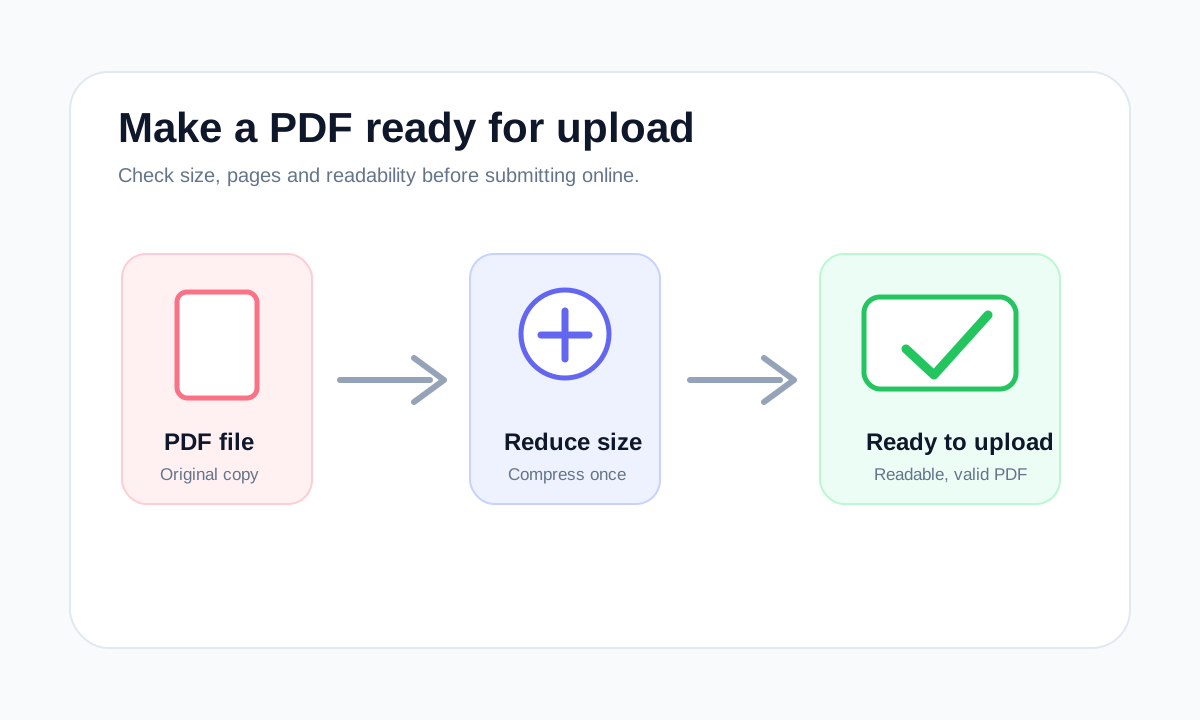
Quick answer
What you need to know first
To make a PDF smaller for upload, remove unnecessary pages, compress the final copy once, confirm it opens correctly and only then submit it.
- 1Check the upload limit and required format.
- 2Delete or extract pages that do not belong.
- 3Compress the cleaned PDF.
- 4Open the result before uploading.
Start with the portal requirement
Most upload portals care about file type, file size and whether the PDF can be opened. They usually do not care which app created the PDF.
If the portal asks for one PDF under a size limit, avoid unnecessary conversions. Clean the pages first, then compress only if the file is still too large.
Do not sacrifice readability
A tiny file is not useful if signatures, stamps or small text become unreadable. For applications, school portals and government forms, the final PDF must remain clear.
- Check small text after compression.
- Keep a copy of the original.
- Avoid compressing repeatedly.
Choose the right PDF tool
Use the guide to understand the file, then choose the smallest LiftPDF workflow that solves the task.
Compress PDFFAQ
Common questions
What if the PDF is still too large?
Extract only the required pages or ask whether the portal accepts multiple files. Some scan-heavy PDFs cannot shrink much without visible quality loss.
Should I convert the PDF to images before uploading?
Usually no. If the portal asks for PDF, keep the file as PDF and reduce size carefully.
Editorial note
LiftPDF Editorial Team
LiftPDF articles are written against the behavior of the public LiftPDF tools. We avoid fake expert bylines, invented claims and workflows that the product cannot actually perform.
Published Jul 17, 2026. Last updated Jul 17, 2026.