Why Is My PDF Too Large?
PDFs usually become large because of scans, high-resolution photos, embedded fonts, attachments or unnecessary pages.
Quick answer
What you need to know first
A PDF is usually too large because it contains image-heavy pages, scans, embedded assets or pages that do not need to be included. Remove unnecessary pages first, then compress once and check the result.
- 1Check whether the PDF is scan-heavy or image-heavy.
- 2Remove pages that do not need to be sent.
- 3Compress the cleaned PDF once.
- 4Open the result and check small text before sharing.
Large PDFs usually have a visible cause
A text-only PDF can be dozens of pages and still remain small. A one-page scan can be large if it contains a high-resolution image. Page count alone does not explain file size.
Before compressing, ask what the PDF contains: scanned pages, photos, attachments, embedded fonts or repeated exports. The safest fix depends on that answer.
Fix the structure before compression
If the file includes blank pages, duplicate pages or sections the recipient does not need, remove those first. Compressing unnecessary pages wastes quality and still leaves a larger file than needed.
- Use Delete Pages for blank or irrelevant pages.
- Use Extract Pages when only one section needs to be sent.
- Use Compress PDF after the page set is final.
The most common causes
Large PDFs usually come from high-resolution scans, full-page photos, embedded fonts, attached files or repeated exports from design software. Page count matters, but one scanned page can be larger than twenty text pages.
Before compressing, identify what kind of PDF you have. A text report and a photo-heavy scan need different expectations.
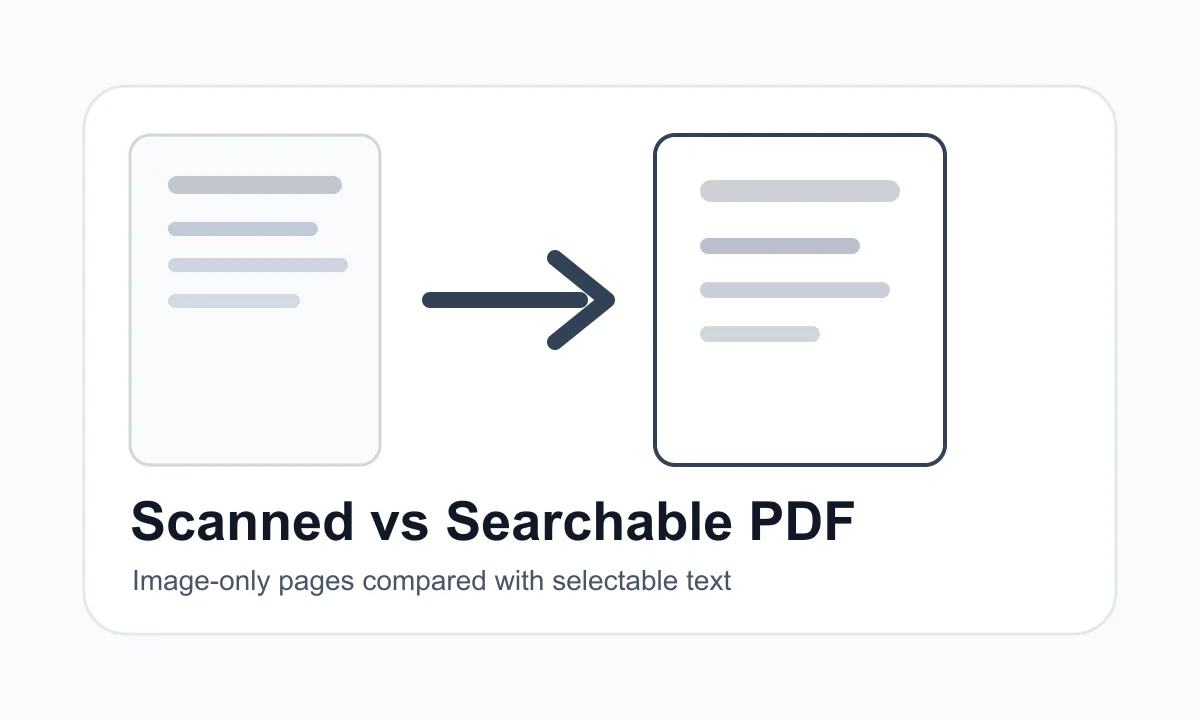
- Scanned pages are often large because each page is an image.
- Photos inside PDFs can be much larger than they look on screen.
- Repeated exporting can preserve unused data.
- Attachments and embedded assets can add hidden weight.
Decision table
How to reduce size safely
| Cause | Best first action | Avoid |
|---|---|---|
| Scanned pages | Compress once and check readability. | Repeated compression. |
| Unneeded pages | Delete or extract before compressing. | Compressing irrelevant pages. |
| Many source files | Merge only the final set. | Merging duplicates. |
FAQ
Common questions
Can every PDF be made much smaller?
No. Already optimized text PDFs may not shrink much. Scan-heavy PDFs usually have more room for reduction.
Will compression lower quality?
It can if the PDF contains images or scans. Always open the compressed file and check readability.
Editorial note
LiftPDF Editorial Team
LiftPDF articles are written against the behavior of the public LiftPDF tools. We avoid fake expert bylines, invented claims and workflows that the product cannot actually perform.
Published Jul 16, 2026. Last updated Jul 16, 2026.