How to Combine Screenshots Into One PDF
Screenshots become easier to share when they are ordered, converted to PDF and checked for readable text.
Quick answer
What you need to know first
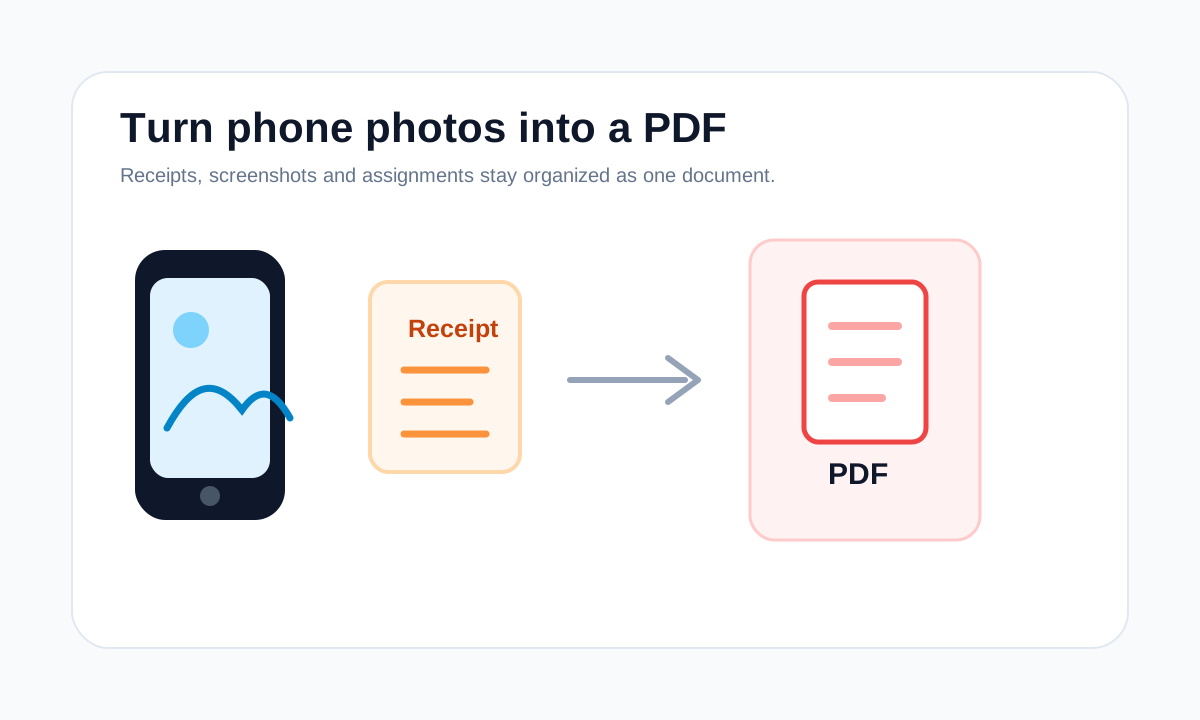
Add screenshots to Images to PDF, arrange them in reading order, use Fit to avoid cropping and download one PDF.
- 1Collect screenshots in sequence.
- 2Remove duplicate or accidental captures.
- 3Convert images to PDF with Fit.
- 4Review the final PDF before sending.
Screenshots behave differently from photos
Screenshots often contain small interface text and sharp edges. PNG usually preserves that content better than JPG, but both can be placed into a PDF.
If screenshots are sent as loose images, the recipient may open them out of order. A PDF keeps the sequence clear.
Avoid cropping important UI details
Use Fit when the whole screenshot matters. Fill can look bigger, but it may crop navigation bars, timestamps or labels.
Open image PDF tools
Convert JPG, PNG and PDF pages while keeping quality tradeoffs visible.
Convert images to PDFFAQ
Common questions
Can screenshots stay selectable in PDF?
No. Screenshot text is pixels unless OCR is applied later.
Should screenshots use PNG to PDF?
PNG is usually a good choice for screenshots because it keeps sharp edges and text clearer.
Editorial note
LiftPDF Editorial Team
LiftPDF articles are written against the behavior of the public LiftPDF tools. We avoid fake expert bylines, invented claims and workflows that the product cannot actually perform.
Published Jul 17, 2026. Last updated Jul 17, 2026.