Compress PDF for Email
Email-friendly PDFs should be small enough to attach, readable enough to review and not password-protected unless the recipient expects it.
Quick answer
What you need to know first
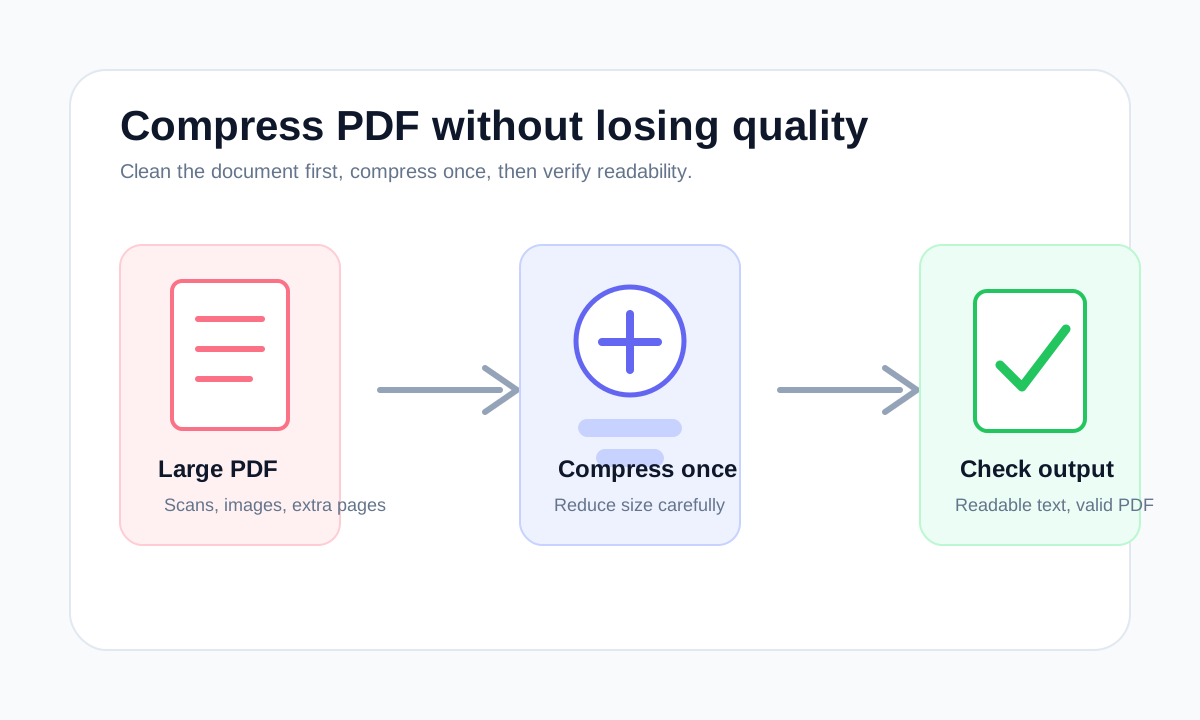
For email, first remove unnecessary pages, then compress once and open the result. Do not keep compressing until the document becomes hard to read.
- 1Check whether your email limit is 10 MB, 20 MB or 25 MB.
- 2Remove pages the recipient does not need.
- 3Compress the final PDF.
- 4Send the file only after checking the exported copy.
Email limits are not the only goal
A PDF can fit under an email limit and still be poor quality. The recipient needs to read it, print it or upload it onward, so the compressed file should remain useful.
If the PDF contains phone scans, signatures or receipts, inspect those pages carefully after compression. Fine text is usually where excessive compression shows first.
When to split instead of compress
If the file is too large because it contains several unrelated sections, splitting or extracting pages may be cleaner than compressing the entire document.
- Extract only the requested pages.
- Split separate attachments when the recipient expects multiple files.
- Merge only documents that belong in one packet.
Choose the right PDF tool
Use the guide to understand the file, then choose the smallest LiftPDF workflow that solves the task.
Compress PDFFAQ
Common questions
What is a good PDF size for email?
Many email systems accept attachments around 10 MB to 25 MB, but the safest limit is the one stated by the recipient or portal.
Should I zip a PDF before emailing it?
Usually no. PDFs are often already compressed, and many email systems handle PDF attachments more predictably than ZIP files.
Editorial note
LiftPDF Editorial Team
LiftPDF articles are written against the behavior of the public LiftPDF tools. We avoid fake expert bylines, invented claims and workflows that the product cannot actually perform.
Published Jul 17, 2026. Last updated Jul 17, 2026.