Delete Pages From a PDF Before Sending It
Before sending a PDF, remove pages the recipient should not see, then review the cleaned output from first page to last.
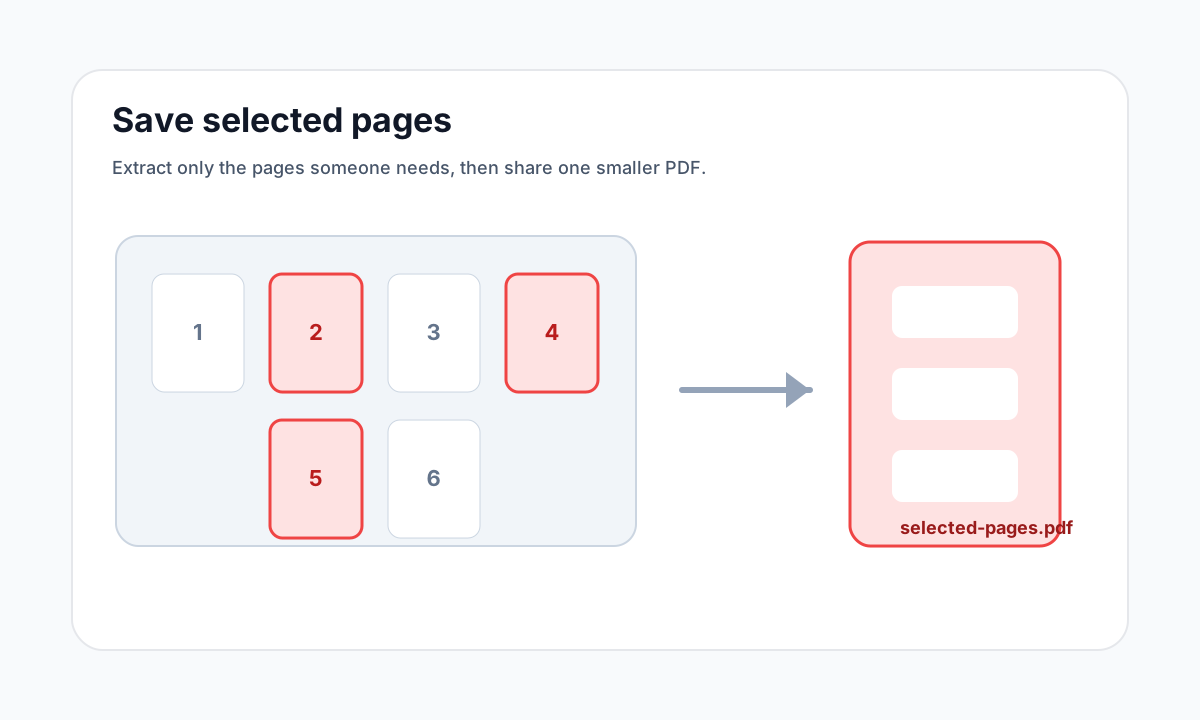
Quick answer
What you need to know first
Upload the PDF to Delete Pages, select the pages to remove, generate a cleaned copy and verify that the remaining pages are correct.
- 1Open Delete Pages.
- 2Upload the PDF.
- 3Select pages that should be removed.
- 4Download and review the cleaned PDF.
Never delete blindly
Always open the output before sending. Accidentally removing a signature page, appendix or instruction page can make the document incomplete.
Open organize tools
Merge, split, delete, extract and reorder PDF pages with focused tools.
Delete PagesFAQ
Common questions
Can I delete all pages?
No. A valid PDF output needs at least one page.
Does the original file change?
No. LiftPDF creates a new PDF download.
Editorial note
LiftPDF Editorial Team
LiftPDF articles are written against the behavior of the public LiftPDF tools. We avoid fake expert bylines, invented claims and workflows that the product cannot actually perform.
Published Jul 17, 2026. Last updated Jul 17, 2026.