How to Compress a PDF Without Losing Quality
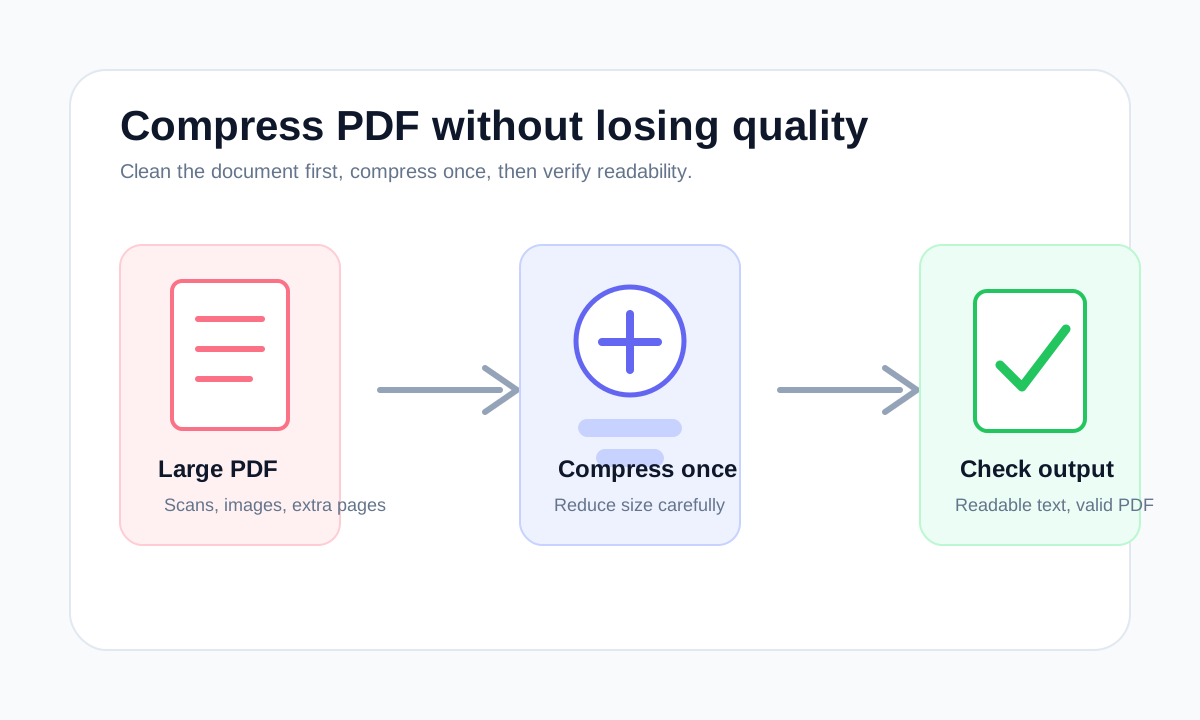
The safest compression workflow is to remove unnecessary pages first, compress once, then check readability instead of repeatedly shrinking the same file.
Quick answer
What you need to know first
To compress a PDF without visible quality loss, keep a copy of the original, remove unneeded pages, compress once, then inspect small text and image detail before sharing.
- 1Keep the original PDF unchanged.
- 2Delete or extract pages that are not needed.
- 3Compress the cleaned PDF once.
- 4Open the result and check readability before sending.
Visual examples
See the workflow before you use it
Quality loss depends on what the PDF contains
A text-heavy PDF can often be rebuilt without obvious visual changes. A scanned PDF or image-heavy PDF is different because most of the size is stored as pixels. Reducing those pixels too aggressively can make text and signatures harder to read.
That is why no honest browser tool should promise the same compression result for every file. The right result is a smaller file that still does the job, not the smallest possible number at any cost.
Compress after the document is final
If the PDF includes blank pages, duplicate pages or sections the recipient does not need, remove those first. Compressing irrelevant pages wastes quality and still leaves the output larger than necessary.
- Use Delete Pages for blank or irrelevant pages.
- Use Extract Pages when only a section must be sent.
- Use Compress PDF after the page set is final.
Decision table
Compression safety checklist
| Situation | Best action | Why |
|---|---|---|
| Text-heavy PDF | Compress once and compare. | Text PDFs may shrink without visible change. |
| Scan-heavy PDF | Check small text after compression. | Image recompression can affect readability. |
| Unneeded pages | Delete or extract first. | Fewer pages reduce size without quality loss. |
Choose the right PDF tool
Use the guide to understand the file, then choose the smallest LiftPDF workflow that solves the task.
Compress PDFFAQ
Common questions
Can PDF compression be lossless?
Some cleanup can be lossless, but image-heavy PDFs often need image recompression to become much smaller.
Why did my PDF not get much smaller?
It may already be optimized, or it may contain content that cannot shrink safely without visible quality loss.
Editorial note
LiftPDF Editorial Team
LiftPDF articles are written against the behavior of the public LiftPDF tools. We avoid fake expert bylines, invented claims and workflows that the product cannot actually perform.
Published Jul 17, 2026. Last updated Jul 17, 2026.