How to Convert PDF to PNG
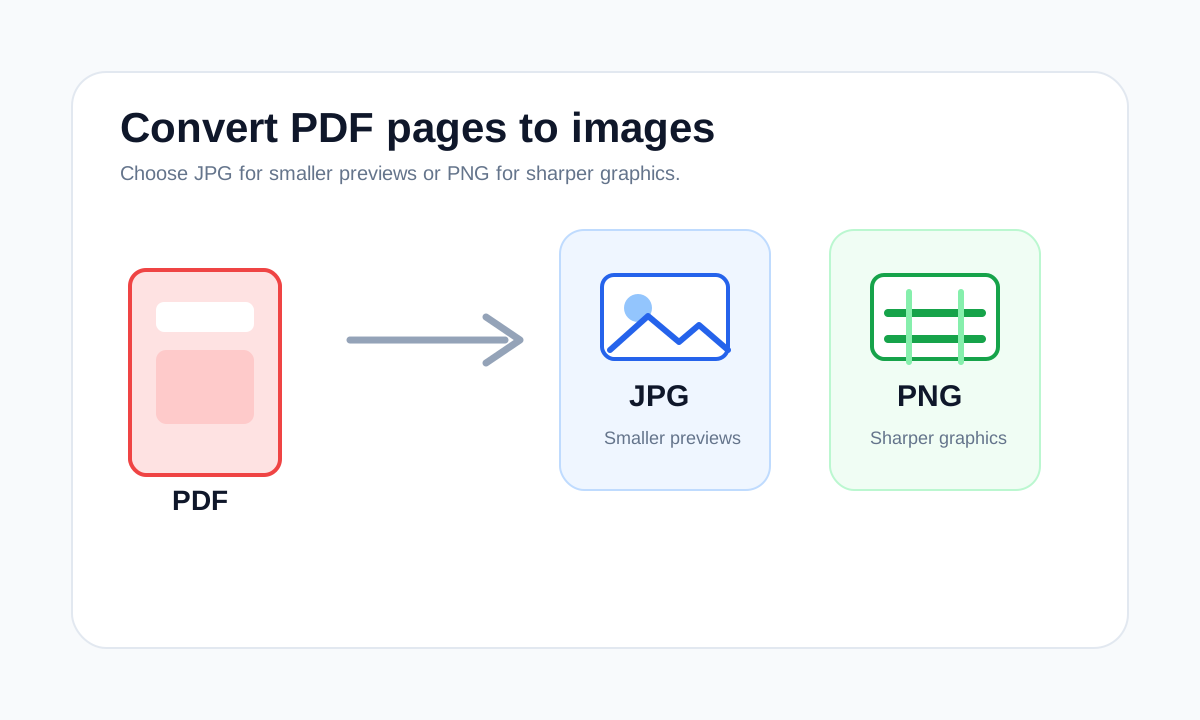
Use PDF to PNG when sharp edges, screenshots, diagrams or text-heavy page images matter more than the smallest image file size.
Quick answer
What you need to know first
Upload the PDF, choose the pages, convert to PNG and download either a single PNG or a ZIP containing all selected pages.
- 1Open PDF to PNG.
- 2Upload your PDF.
- 3Choose all pages, a single page or a page range.
- 4Download the PNG output.
Visual examples
See the workflow before you use it
When PNG is better than JPG
PNG is often better for screenshots, diagrams and pages with small text because it avoids JPG compression artifacts. It can create larger files, but the result may look cleaner.
For photo-heavy PDF pages, JPG is usually more size-efficient. For UI captures, forms and charts, PNG is often the safer visual format.
PNG output is still an image
Exporting a PDF page to PNG turns the page into pixels. That is useful for previews and visual sharing, but it does not preserve selectable text or PDF structure.
Open conversion tools
Convert between PDF, images and text with browser-based LiftPDF tools.
Convert PDF to PNGFAQ
Common questions
Is PNG higher quality than JPG?
PNG avoids JPG artifacts, which can look cleaner for text and graphics. It is not automatically better for every photo.
Can PNG keep PDF links?
No. PNG is an image, so PDF links and selectable text are not preserved.
Editorial note
LiftPDF Editorial Team
LiftPDF articles are written against the behavior of the public LiftPDF tools. We avoid fake expert bylines, invented claims and workflows that the product cannot actually perform.
Published Jul 17, 2026. Last updated Jul 17, 2026.