How to Merge PDF Files on Android
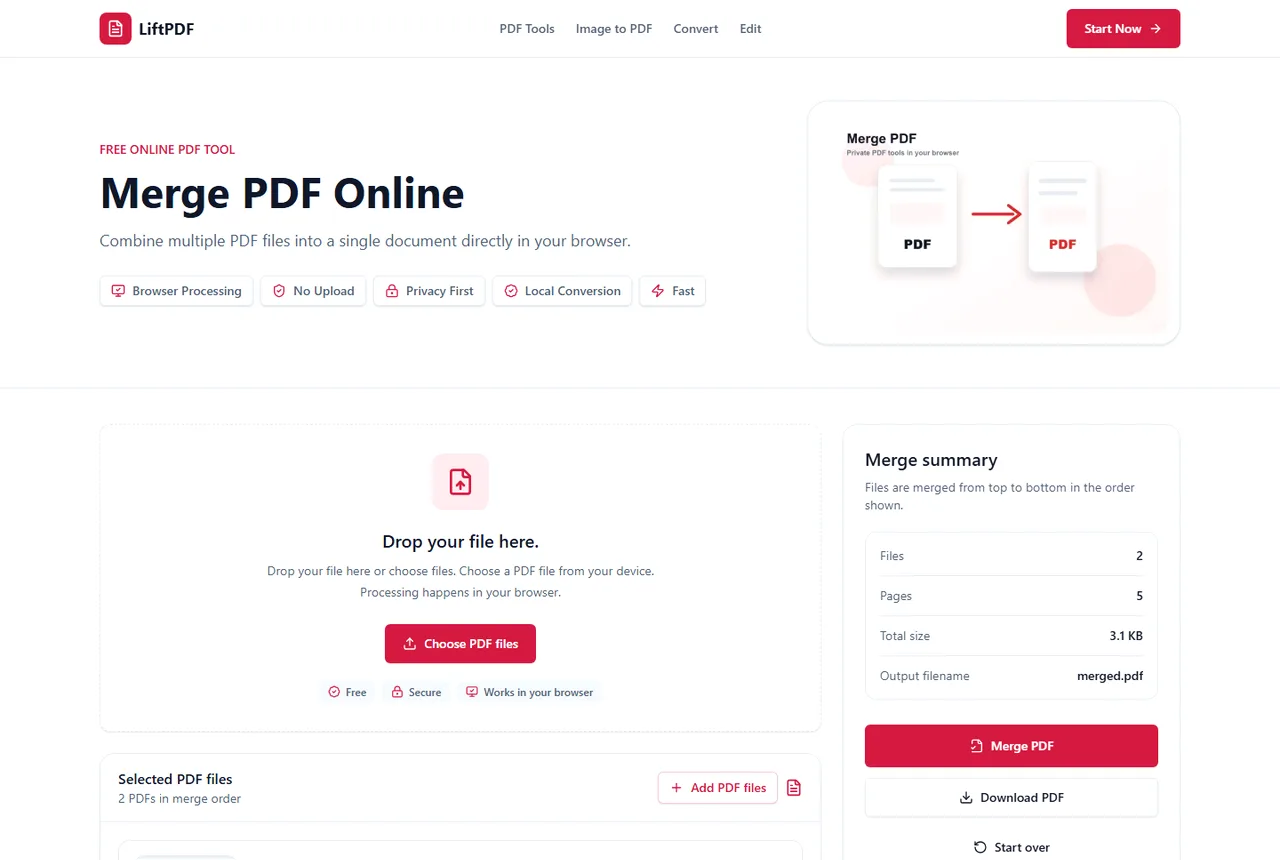
Android users can merge PDFs from Chrome or another modern browser. Choose files, arrange them, merge locally and download the combined PDF.
Quick answer
How to do it
- 1Open LiftPDF in Chrome on Android.
- 2Choose PDF files from your device.
- 3Review the selected files.
- 4Use move controls to set the final order.
- 5Merge and download the PDF.
Using Chrome on Android
Chrome on Android supports the browser APIs needed for LiftPDF's PDF workflow. Use the upload button to choose local files, then review the selected PDF list before exporting.
If your PDFs are stored in a cloud app, save them locally first when possible. Local files are easier for the browser to process reliably.
The file order controls the final PDF
The most important part of merging PDFs is sequence. The first file becomes the first section of the final PDF, the second file follows it, and so on.
Before you click Merge PDF, check the preview list and move files up or down until the cover page, main document, appendices and attachments are in the right order.
Mobile file-size tips
Very large PDFs can use more memory on phones. If a merge fails on mobile, try fewer files at once or use a desktop browser for the largest packets.
Privacy and browser processing
LiftPDF merges PDFs in your browser for supported files. The pages are copied locally into a new document, so the workflow does not require a document upload API.
That matters for contracts, invoices, reports and personal records. You still need to use good judgment with sensitive files, but avoiding a server upload is a practical privacy advantage.
FAQ
Questions about merging PDFs
Can I merge PDF files for free?
Yes. LiftPDF lets you merge PDF files for free in your browser.
Are my PDFs uploaded to a server?
For supported files, the merge runs locally in your browser. LiftPDF does not need a backend upload API to combine the pages.
Will PDF quality change after merging?
No. LiftPDF copies the original PDF pages into a new document instead of converting them into images.
Can I change the order before merging?
Yes. Reorder the PDF files in the list before exporting. The final PDF follows that order.
Does Merge PDF work on Android phones?
Yes. Use a modern browser such as Chrome for Android.
What if a PDF is too large on mobile?
Try merging fewer files at once or use a desktop device for very large packets.