How to Prepare a PDF for Email
A good email PDF is the right file, small enough to attach, readable and not password-protected unless the recipient expects it.
Quick answer
What you need to know first
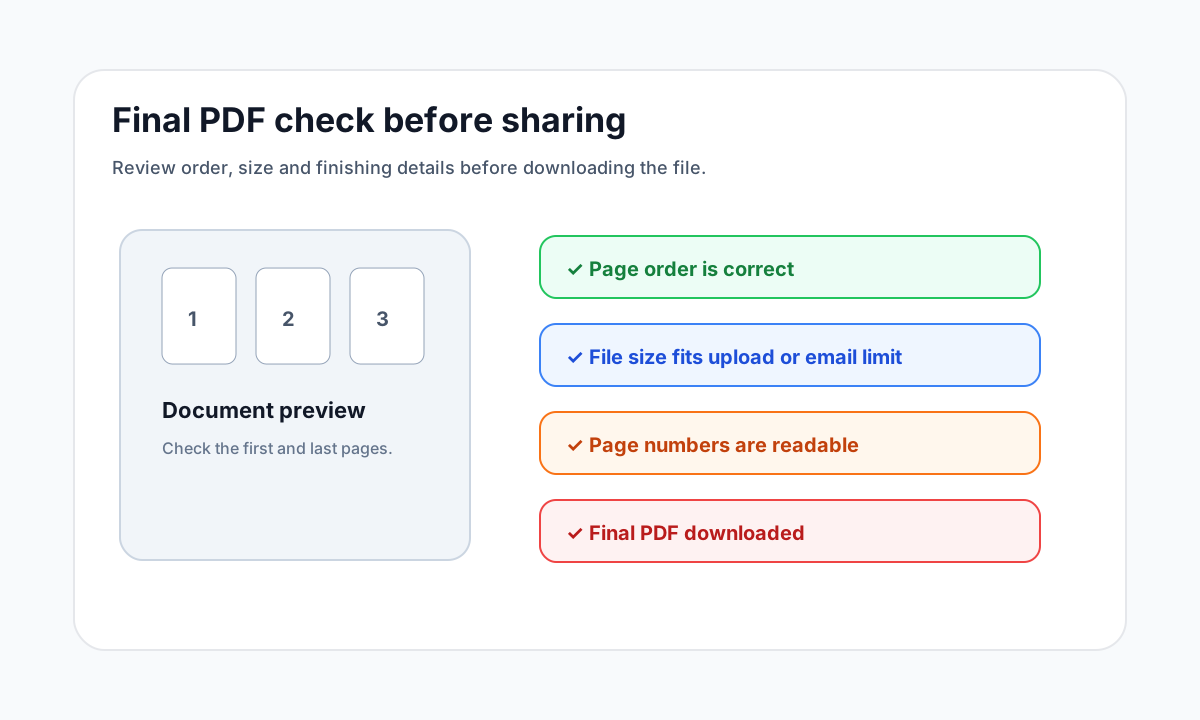
Before emailing a PDF, remove unnecessary pages, compress if needed, avoid accidental password locks and open the final file before sending.
- 1Check that the PDF contains the right pages.
- 2Compress only if it exceeds the email limit.
- 3Avoid passwords unless expected.
- 4Open the attachment before sending.
Email workflows need a final check
Email mistakes are usually simple: wrong file, huge attachment, missing pages or a password the recipient does not have. A short final check avoids most of them.
If the file contains sensitive information, use password protection intentionally and send the password separately.
Use compression carefully
Compress when the file is too large, but do not compress the same document again and again. If it stays large, extract only the required pages or remove scans that do not belong.
Choose the right PDF tool
Use the guide to understand the file, then choose the smallest LiftPDF workflow that solves the task.
Compress PDFFAQ
Common questions
Is PDF better than images for email?
For multi-page documents, yes. PDF keeps pages together and easier to review.
Should I send the password in the same email?
No. If you protect the PDF, share the password through a separate trusted channel.
Editorial note
LiftPDF Editorial Team
LiftPDF articles are written against the behavior of the public LiftPDF tools. We avoid fake expert bylines, invented claims and workflows that the product cannot actually perform.
Published Jul 17, 2026. Last updated Jul 17, 2026.