How to Protect a PDF Before Sending It
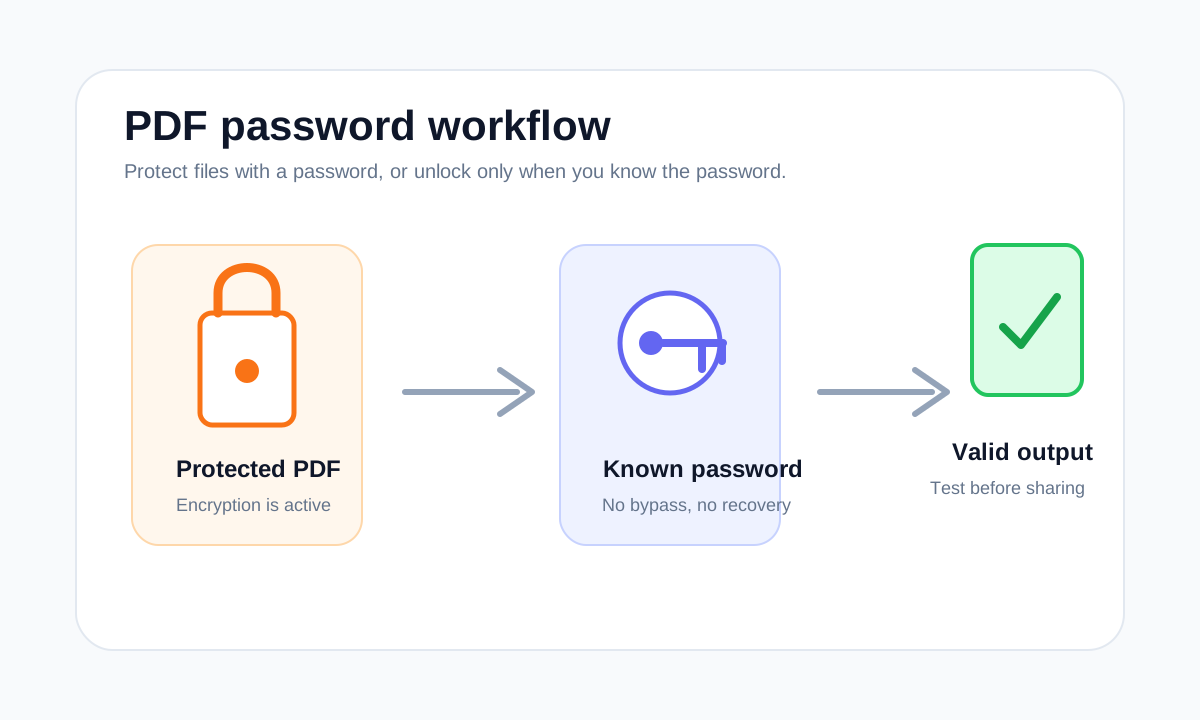
Protect a PDF when the recipient needs a password to open it, then send the password through a separate trusted channel.
Quick answer
What you need to know first
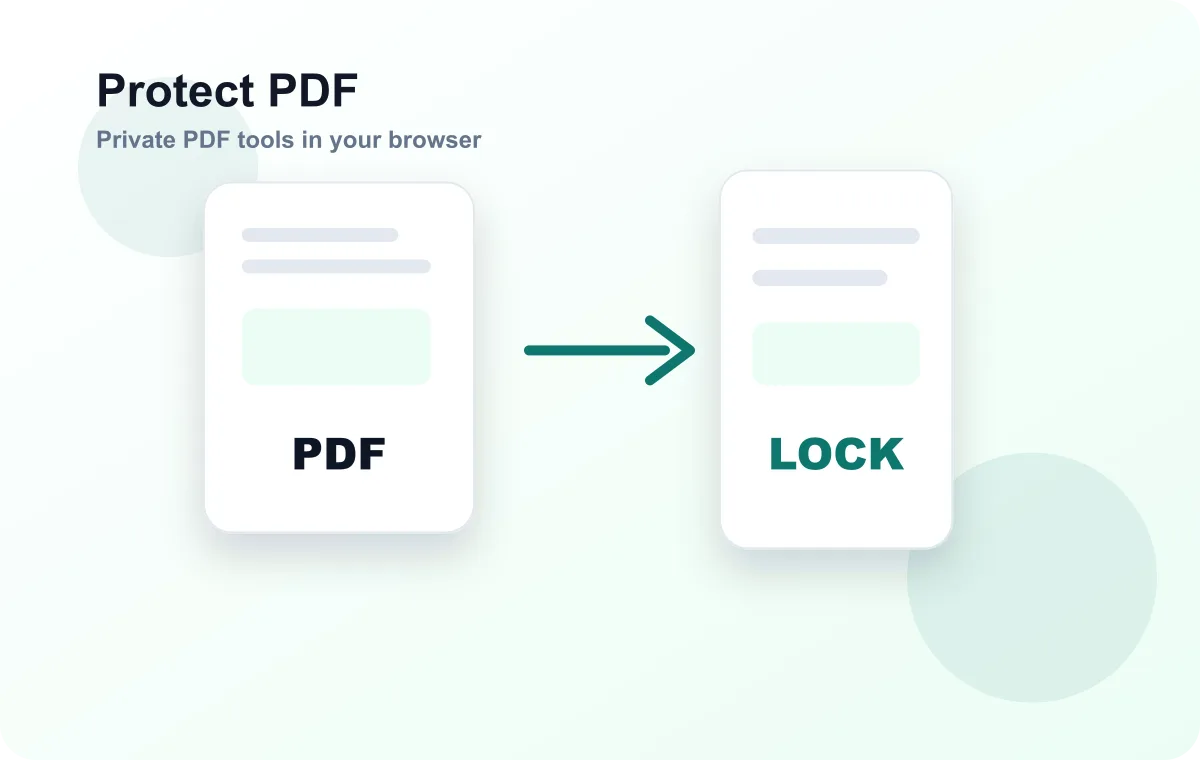
Upload the PDF, choose a strong password, confirm it, create the protected PDF and test that it asks for the password before sending.
- 1Open Protect PDF.
- 2Upload the document.
- 3Use a strong password you can share safely.
- 4Download and test the protected copy.
Visual examples
See the workflow before you use it
Protection is useful, not magic
PDF password protection helps prevent casual opening of the file. It is not a replacement for careful sharing, secure email practices or choosing the right recipient.
For sensitive files, send the password separately from the PDF. Do not place the password in the same message as the attachment.
What to check before sending
Make sure the protected output opens with the correct password and does not open without it. Also confirm the recipient knows how they will receive the password.
Open PDF security tools
Protect PDFs with real encryption or unlock files when you know the password.
Protect PDFFAQ
Common questions
Should every PDF be password protected?
No. Protect PDFs that contain sensitive information or require controlled access.
Can I recover the password later?
LiftPDF does not recover forgotten passwords. Keep the password somewhere safe.
Editorial note
LiftPDF Editorial Team
LiftPDF articles are written against the behavior of the public LiftPDF tools. We avoid fake expert bylines, invented claims and workflows that the product cannot actually perform.
Published Jul 17, 2026. Last updated Jul 17, 2026.