How to Turn School Assignment Photos Into a PDF
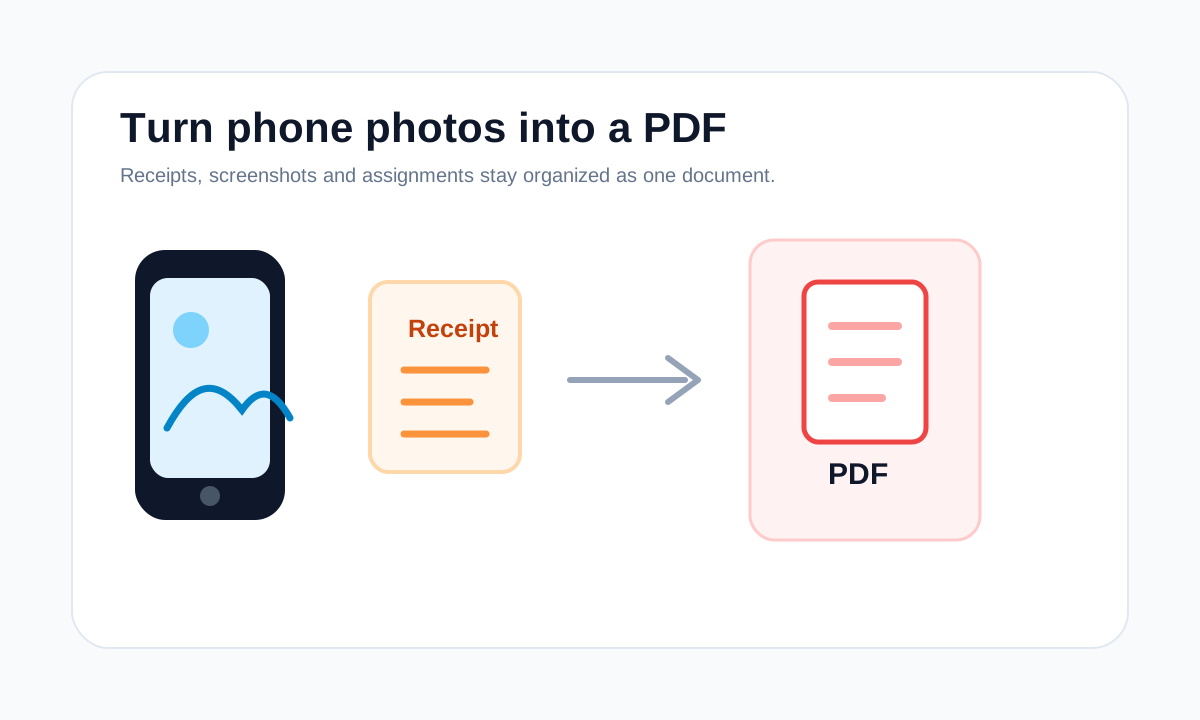
Assignment photos should be readable, in page order and exported as one PDF when the school portal asks for PDF submission.
Quick answer
What you need to know first
Retake unclear photos, add pages in order, use Fit to keep edges visible and download a PDF that matches the assignment instructions.
- 1Photograph each page straight-on.
- 2Check that handwriting or print is readable.
- 3Add photos in page order.
- 4Download one PDF and open it before submitting.
Readability comes first
A PDF is only useful if the teacher or reviewer can read it. Fix lighting, blur and missing edges before conversion.
If the assignment has multiple pages, order them exactly as they should be read. Page order mistakes are harder to catch after submission.
Choose simple layout settings
For assignment photos, Fit is usually safer than Fill because it keeps the full page visible. Margins can help the page feel cleaner, but they should not shrink text too much.
Open image PDF tools
Convert JPG, PNG and PDF pages while keeping quality tradeoffs visible.
Convert photos to PDFFAQ
Common questions
Can I use phone photos directly?
Yes, if they are clear and readable. Use the original files rather than compressed chat copies.
Should I compress the assignment PDF?
Only if the school portal has a size limit or the PDF is unusually large.
Editorial note
LiftPDF Editorial Team
LiftPDF articles are written against the behavior of the public LiftPDF tools. We avoid fake expert bylines, invented claims and workflows that the product cannot actually perform.
Published Jul 17, 2026. Last updated Jul 17, 2026.