Add Page Numbers Before Sharing a PDF
Page numbers help recipients discuss and review a PDF, especially when it contains reports, attachments or application packets.
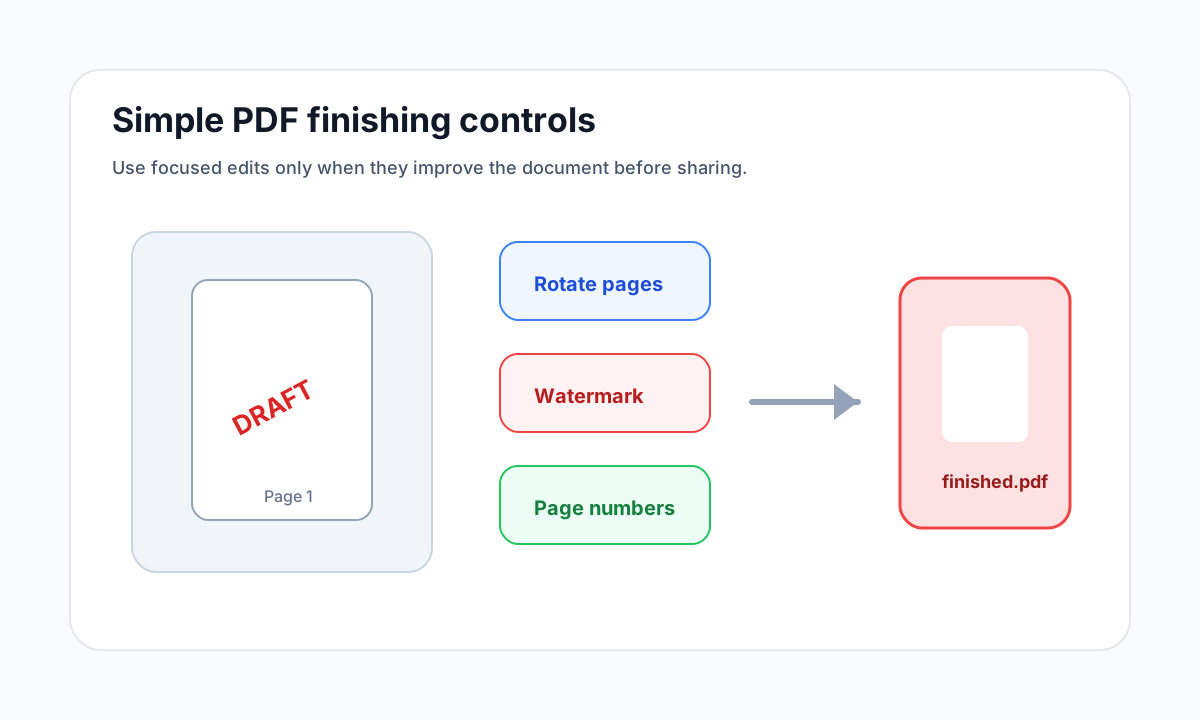
Quick answer
What you need to know first
Finalize page order, add numbers in a readable position, then download and check the first and last pages.
- 1Merge, delete or reorder pages first.
- 2Choose a clear page number format.
- 3Select position and size.
- 4Download the numbered PDF.
Number after the PDF is final
Page numbering is easiest when the document structure is already final. If you reorder or delete pages after numbering, the result can be confusing.
For longer documents, formats such as Page 1 of 10 make it easier for recipients to know whether they have the full file.
Readable beats decorative
Keep page numbers clear, small and consistently positioned. Avoid placing them over important document content.
Open organize tools
Merge, split, delete, extract and reorder PDF pages with focused tools.
Add Page NumbersFAQ
Common questions
Can I choose where numbers appear?
Yes. LiftPDF supports common top and bottom positions.
Can I start at a number other than 1?
Yes. Start numbers are useful for appendices or combined packets.
Editorial note
LiftPDF Editorial Team
LiftPDF articles are written against the behavior of the public LiftPDF tools. We avoid fake expert bylines, invented claims and workflows that the product cannot actually perform.
Published Jul 17, 2026. Last updated Jul 17, 2026.