How to Extract Multiple Pages From a PDF
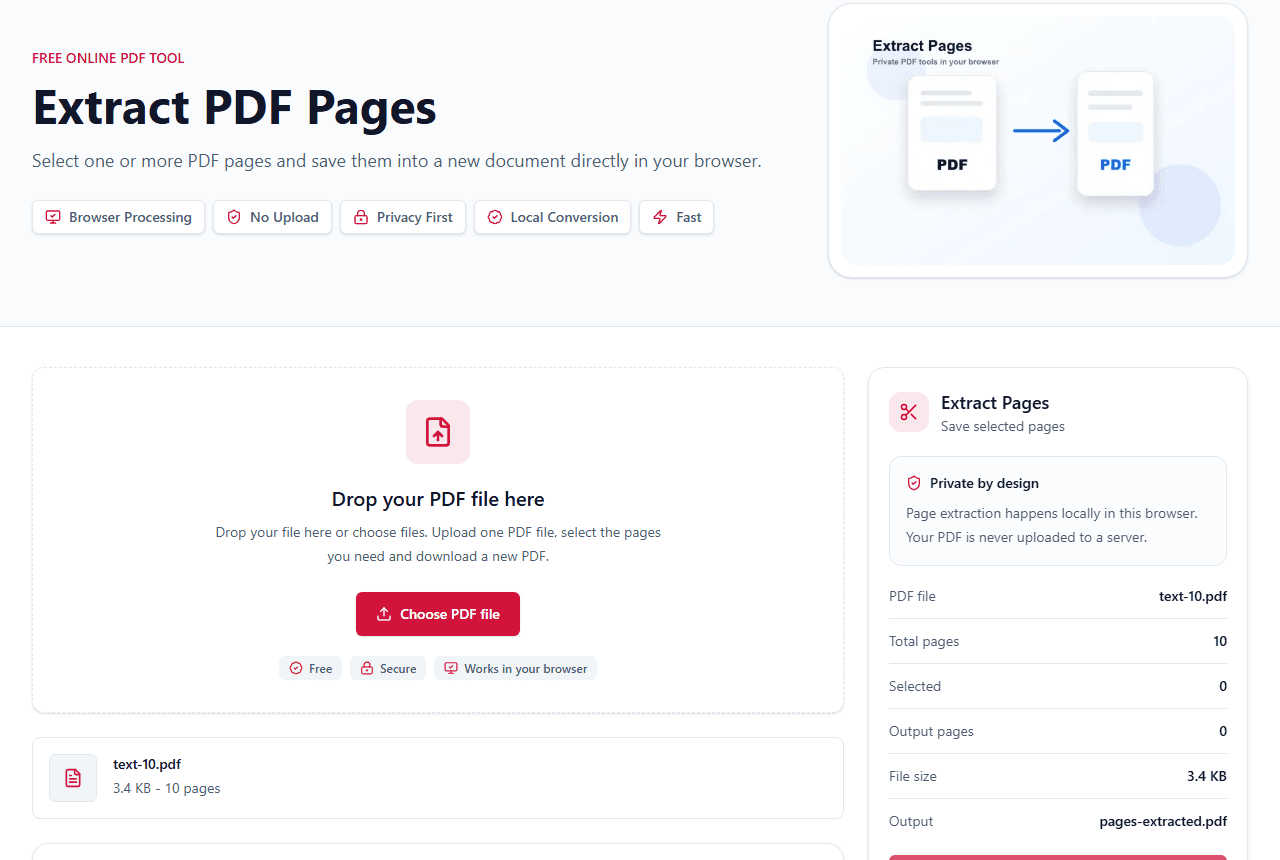
To extract multiple pages, select each thumbnail you want to keep and export them together. LiftPDF keeps the selected pages in their original order.
Quick answer
What you need to know first
To extract multiple pages, select each thumbnail you want to keep and export them together. LiftPDF keeps the selected pages in their original order.
- 1Upload the PDF.
- 2Review the page thumbnails.
- 3Select every page you want in the new PDF.
- 4Check the selected-page counter.
- 5Export the selected pages.
Selecting pages visually
Multiple-page extraction is safer when you select pages visually. This matters when a PDF includes cover sheets, dividers or blank pages that change the expected numbering.
The new PDF is built from the selected pages only. Unselected pages stay out of the exported file.
Original order vs custom order
Extract Pages keeps selected pages in the original document order. This is usually best for reports, contracts and packets where the sequence should remain familiar.
If you need to change the order first, use Reorder Pages, then extract or export the reordered document.
One PDF or separate files
LiftPDF Extract Pages creates one new PDF from the selected pages. If your goal is to create separate files for every page, use Split PDF instead.
Extract pages now
Use the visual page picker to save selected pages into a new PDF.
Extract selected pagesFAQ
Questions about this workflow
Can I extract pages 2, 5 and 8?
Yes. Select those thumbnails and export. The output will contain the selected pages in original order.
Can I reorder the extracted pages?
Extract Pages preserves original order. Use Reorder Pages if you need a custom sequence.
Can I extract all pages into one PDF?
If you select all pages, the output will contain all pages. For separate one-page PDFs, use Split PDF.
Editorial note
LiftPDF Editorial Team
LiftPDF articles are written against the behavior of the public LiftPDF tools. We avoid fake expert bylines, invented claims and workflows that the product cannot actually perform.
Published Jul 15, 2026. Last updated Jul 16, 2026.