How to Extract One Page From a PDF
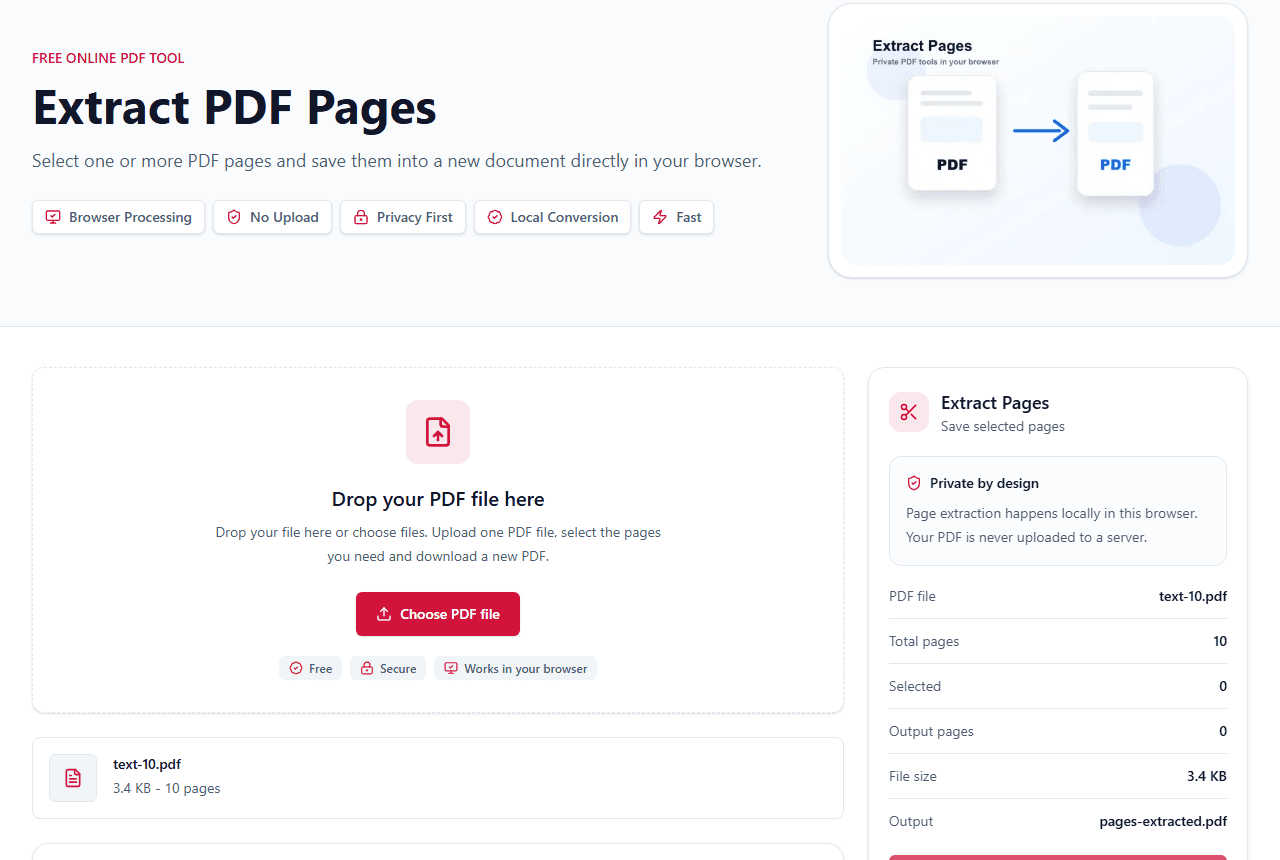
To extract one page, upload the PDF, select exactly one page thumbnail, and export. The result is a new PDF containing only that selected page.
Quick answer
What you need to know first
To extract one page, upload the PDF, select exactly one page thumbnail, and export. The result is a new PDF containing only that selected page.
- 1Open Extract Pages.
- 2Upload the PDF.
- 3Click only the page you want to save.
- 4Confirm that one page is selected.
- 5Export and download the new one-page PDF.
Best cases for one-page extraction
Single-page extraction is useful when you need one receipt, one contract page, one certificate, one invoice or one signature page from a larger PDF.
It also helps when a document contains private surrounding pages that should not be shared with the recipient.
Why thumbnails matter
Page numbers can be misleading when a PDF has a cover page or blank pages. A visual thumbnail lets you confirm the exact page before creating the new file.
LiftPDF shows the pages before export so you can avoid accidentally sending the wrong page.
What happens to the original PDF
The original PDF is not changed. LiftPDF creates a separate PDF containing the selected page.
If you need to remove the page from the original document instead, use Delete Pages.
FAQ
Questions about this workflow
Can I save only page 1 from a PDF?
Yes. Select only page 1 and export. The output will be a one-page PDF.
Can I extract a single page without Adobe Acrobat?
Yes. LiftPDF can extract one page in the browser without Acrobat or a desktop installer.
Does extracting one page delete it from the original file?
No. Extraction creates a new PDF. It does not edit or overwrite the original document.
Editorial note
LiftPDF Editorial Team
LiftPDF articles are written against the behavior of the public LiftPDF tools. We avoid fake expert bylines, invented claims and workflows that the product cannot actually perform.
Published Jul 15, 2026. Last updated Jul 16, 2026.