Extract Pages vs Split PDF
Use Extract Pages when you want one new PDF containing selected pages. Use Split PDF when you want ranges or separate files. Use Delete Pages when most of the document should stay.
Quick answer
What you need to know first
Use Extract Pages when you want one new PDF containing selected pages. Use Split PDF when you want ranges or separate files. Use Delete Pages when most of the document should stay.
The quick decision table
Choose the tool based on the output you want, not just the input PDF. Most mistakes happen when users use Split PDF for a selection task or Delete Pages when they only need a short excerpt.
- Extract Pages: save selected pages into one new PDF.
- Split PDF: create files from ranges or every page.
- Delete Pages: remove unwanted pages and keep the rest.
- Reorder Pages: change page order before exporting.
- Merge PDF: combine extracted pages with other documents.
When Extract Pages is better
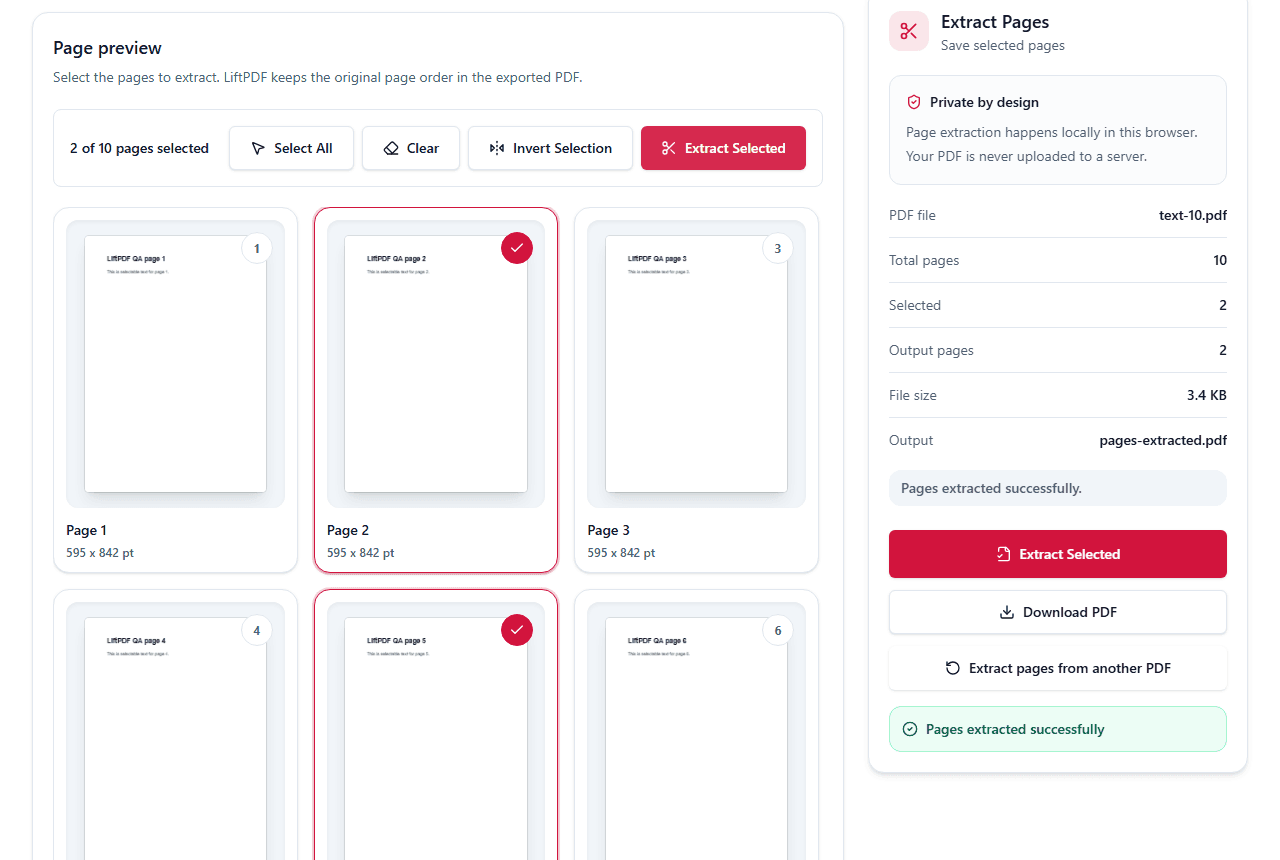
Extract Pages is best when you already know which pages matter and the rest should not be included. It is especially good for contracts, reports, books and invoice packets.
The visual thumbnail workflow reduces mistakes because you choose the pages you want to keep.
When Split PDF is better
Split PDF is better when you want to separate a document by typed ranges or create one file per page. It is faster when the page numbers are known and the output should be split into multiple files.
When Delete Pages is better
Delete Pages is better when the final PDF should contain most of the original document. Instead of selecting the pages to keep, you select the pages to remove.
The output is the real difference
Extract Pages is best when you want one new PDF containing selected pages. Split PDF is best when you need multiple files: one file per page, or separate PDFs for several ranges.
If the recipient should receive one smaller document, extract. If your workflow needs separate attachments, split.
Extract pages now
Use the visual page picker to save selected pages into a new PDF.
Extract selected pagesFAQ
Questions about this workflow
Is extracting pages the same as splitting a PDF?
No. Extracting usually saves selected pages into a new PDF. Splitting usually creates files from ranges or every page.
Should I delete pages or extract pages?
Extract pages when you need a small excerpt. Delete pages when most of the document should remain.
Can I reorder pages before extracting?
Use Reorder Pages first if you need a custom order, then export the document or extract the pages you need.
Editorial note
LiftPDF Editorial Team
LiftPDF articles are written against the behavior of the public LiftPDF tools. We avoid fake expert bylines, invented claims and workflows that the product cannot actually perform.
Published Jul 12, 2026. Last updated Jul 16, 2026.