How to Extract PDF Pages for Email
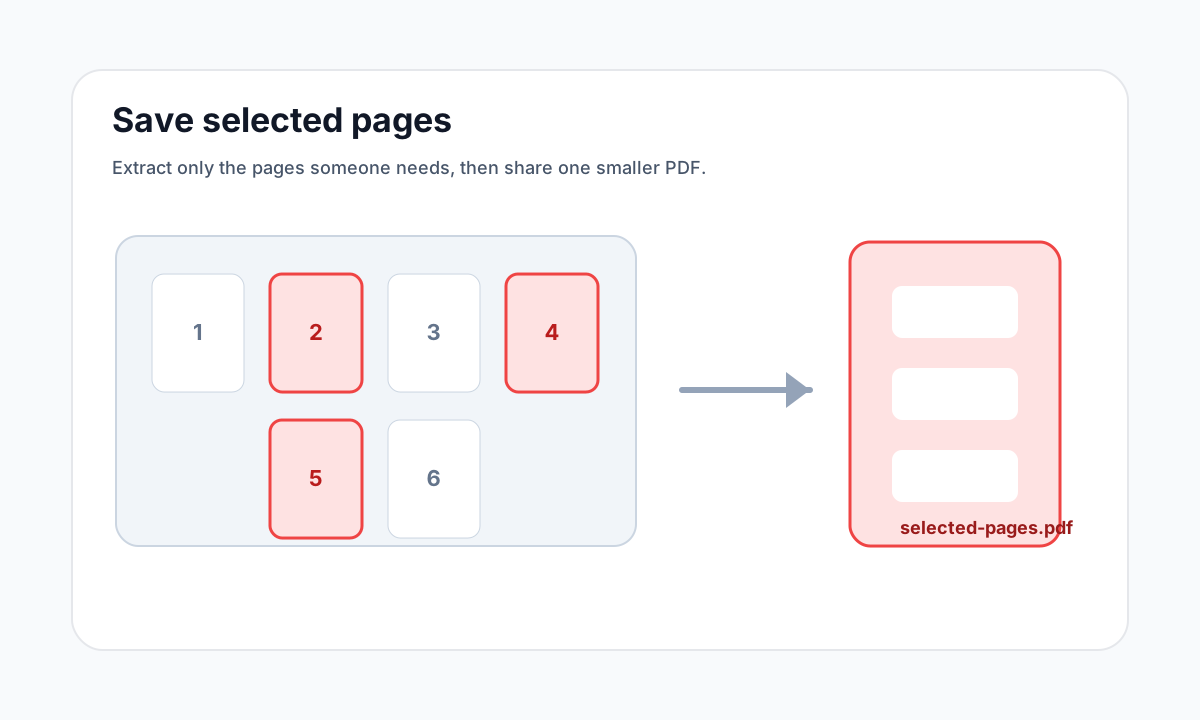
If only a few pages are relevant, extracting them can create a smaller, clearer email attachment than sending the entire PDF.
Quick answer
What you need to know first
Select the pages the recipient needs, export them as one PDF, then attach the smaller copy to your email.
- 1Open Extract Pages.
- 2Upload the source PDF.
- 3Select the pages needed for email.
- 4Download and attach the new PDF.
Extracting reduces noise
A full PDF may include sections the recipient does not need. Extracting only relevant pages keeps the attachment focused and can reduce file size without quality loss.
This is useful for invoices, certificates, application pages, contract sections and report excerpts.
Privacy benefit
Extracting pages can also avoid sharing unrelated or private information that happens to be in the same source document.
Open organize tools
Merge, split, delete, extract and reorder PDF pages with focused tools.
Extract PagesFAQ
Common questions
Should I extract or compress first?
Extract first when only some pages are needed. Compress afterward only if the extracted PDF is still too large.
Can I extract pages from a protected PDF?
You may need to unlock it first with the correct password and permission.
Editorial note
LiftPDF Editorial Team
LiftPDF articles are written against the behavior of the public LiftPDF tools. We avoid fake expert bylines, invented claims and workflows that the product cannot actually perform.
Published Jul 17, 2026. Last updated Jul 17, 2026.