How to Fix PDF Pages Out of Order
When PDF pages are out of order, reorder the pages visually before adding page numbers, watermarking or sending the document.
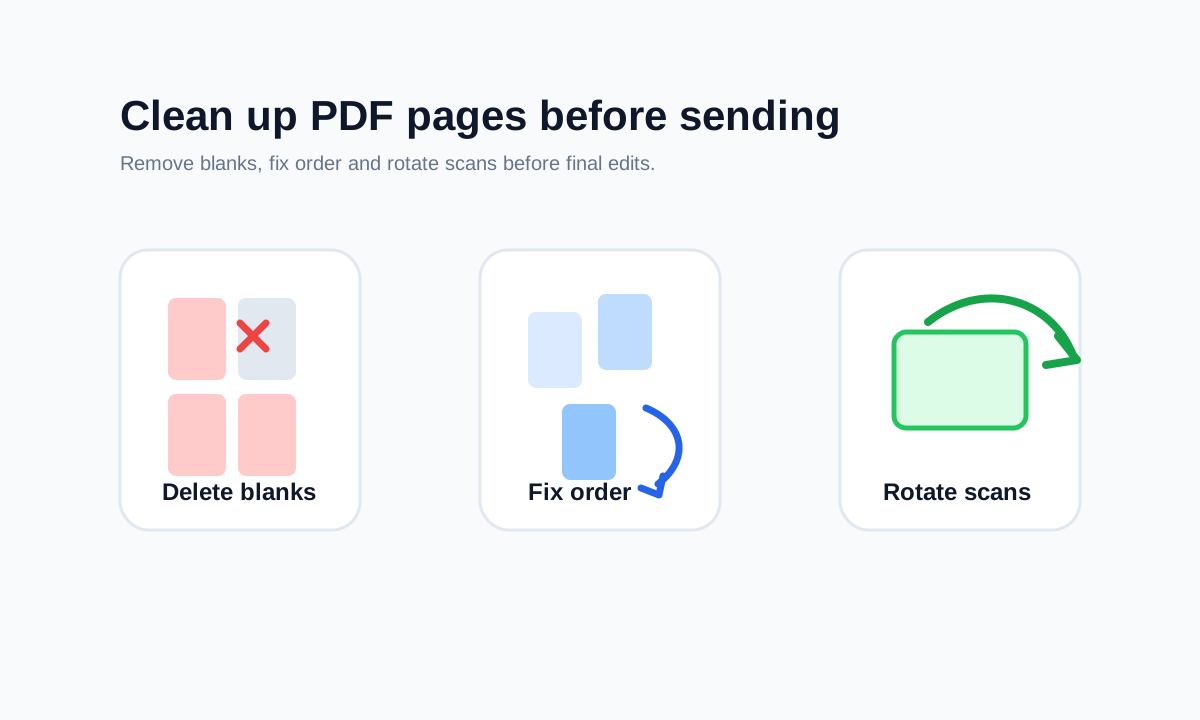
Quick answer
What you need to know first
Use Reorder Pages to move pages into reading order, then download the corrected PDF and review it from first page to last.
- 1Upload the PDF to Reorder Pages.
- 2Use thumbnails to identify the correct order.
- 3Move pages into sequence.
- 4Download and review the final PDF.
Page order issues are common after scanning
Multi-page scans, combined attachments and manual exports can put pages in the wrong order. Fixing order early prevents mistakes later in the workflow.
If you add page numbers before reordering, the numbering may no longer match the final reading sequence.
Use visual checks
Rely on page thumbnails and obvious document sections, not just page numbers printed inside the PDF. Cover sheets and appendices can shift expectations.
Open organize tools
Merge, split, delete, extract and reorder PDF pages with focused tools.
Reorder PDF pagesFAQ
Common questions
Should I reorder before merging?
Usually clean each file first, then merge, then do a final order check on the combined PDF.
Can I move pages on mobile?
Yes. LiftPDF includes accessible move controls for page organization workflows.
Editorial note
LiftPDF Editorial Team
LiftPDF articles are written against the behavior of the public LiftPDF tools. We avoid fake expert bylines, invented claims and workflows that the product cannot actually perform.
Published Jul 17, 2026. Last updated Jul 17, 2026.