How to Extract Pages From a PDF
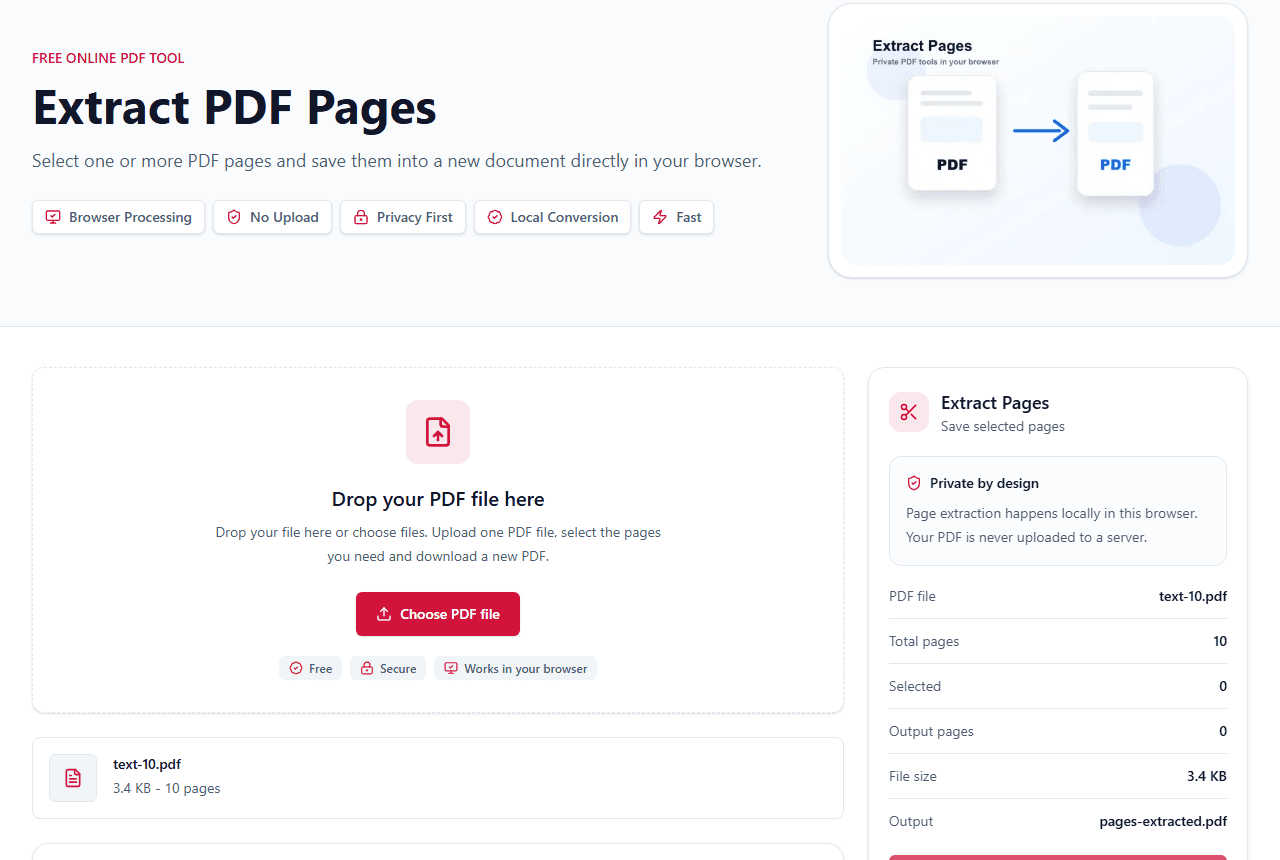
The fastest way to extract PDF pages is to preview the document, select the pages you need, and export those pages into a new PDF. LiftPDF does this in your browser, so the file does not need to be uploaded to a server.
Quick answer
What you need to know first
The fastest way to extract PDF pages is to preview the document, select the pages you need, and export those pages into a new PDF. LiftPDF does this in your browser, so the file does not need to be uploaded to a server.
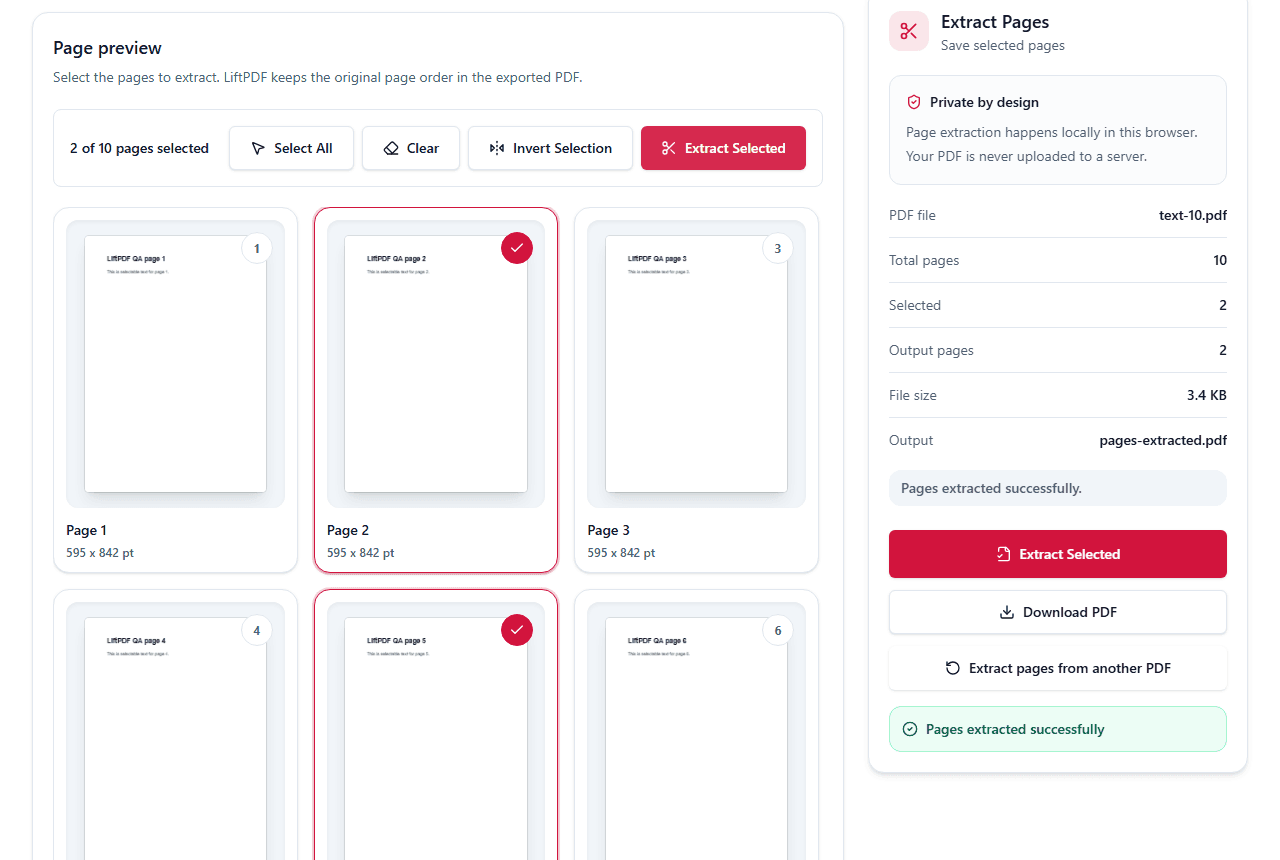
- 1Open Extract Pages.
- 2Drop your PDF into the upload area.
- 3Wait for the page thumbnails to appear.
- 4Select the pages you want to keep.
- 5Click Extract Selected and download the new PDF.
Visual examples
See the workflow before you use it
When extraction is the right choice
Use extraction when you need a smaller PDF that contains only selected pages from a larger document. It is different from deleting pages: extraction starts with the pages you want to keep, while deletion starts with the pages you want to remove.
This is useful for contracts, reports, invoices, books, course material and scanned packets where sending the full document would be unnecessary or risky.
How the LiftPDF workflow works
After you upload a PDF, LiftPDF renders page thumbnails so you can make a visual decision. This helps prevent page-number mistakes, especially when cover pages, blank pages or appendices change the expected numbering.
When you export, the selected pages are copied into a new PDF in their original order. The operation is designed to preserve page content and layout.
Privacy and file safety
The extraction workflow runs locally in your browser. That means your PDF does not need to be sent to a backend just to copy selected pages.
For sensitive files, this is the main reason to use LiftPDF: the document remains on your device during the extraction process.
Common mistakes to avoid
Do not rely only on memory when choosing page numbers. Preview the thumbnails and confirm that the selected pages match what you need.
If the PDF is password protected, unlock it first with the correct password. If the PDF is scanned, extraction still works for whole pages, but it will not turn images into selectable text.
Example: send only the pages a recipient needs
If a 40-page report contains a two-page invoice section, extracting those two pages is cleaner than sending the whole report. It keeps the recipient focused and reduces accidental disclosure of unrelated pages.
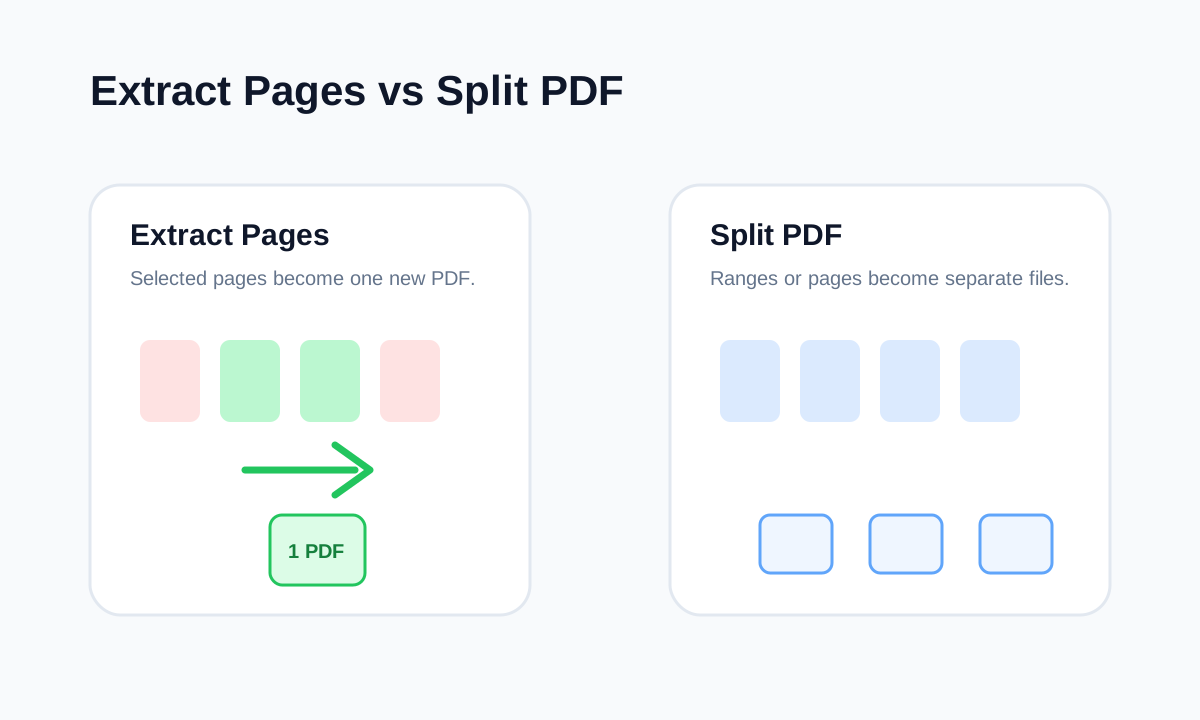
Extraction creates a new PDF from selected pages. It is different from Delete Pages because the original document remains the source file, while the export is a separate smaller copy.
Selection mistakes to avoid
The biggest risk is choosing the wrong page numbers after a cover sheet, table of contents or blank scan page shifts the count. Use thumbnails when available and confirm the exported file before sending it onward.
- Check page thumbnails, not only typed page numbers.
- Include appendix pages only when they belong to the extracted section.
- Use Split PDF for many separate output files.
- Use Delete Pages when the goal is to keep the original document minus unwanted pages.
Decision table
Extract, delete or split?
| Need | Use | Result |
|---|---|---|
| Send a few pages | Extract Pages | One new PDF with selected pages. |
| Remove pages from a copy | Delete Pages | One PDF with unwanted pages removed. |
| Create many files | Split PDF | Separate PDFs or ranges. |
FAQ
Questions about this workflow
Can I extract pages from a PDF for free?
Yes. LiftPDF lets you extract selected pages from a PDF for free in your browser.
Are my PDF files uploaded?
No. The extraction workflow is handled locally in your browser for supported files.
Can I extract non-consecutive pages?
Yes. Select any page thumbnails you need. The output keeps selected pages in their original order.
Will the extracted PDF lose quality?
No. LiftPDF copies the selected PDF pages into a new document instead of rasterizing them.
Editorial note
LiftPDF Editorial Team
LiftPDF articles are written against the behavior of the public LiftPDF tools. We avoid fake expert bylines, invented claims and workflows that the product cannot actually perform.
Published Jul 12, 2026. Last updated Jul 16, 2026.