How to Merge PDF Files
Merging PDFs means combining two or more PDF documents into one file. The key is to upload the files, check their order, merge them, and download a single PDF that keeps every page in sequence.
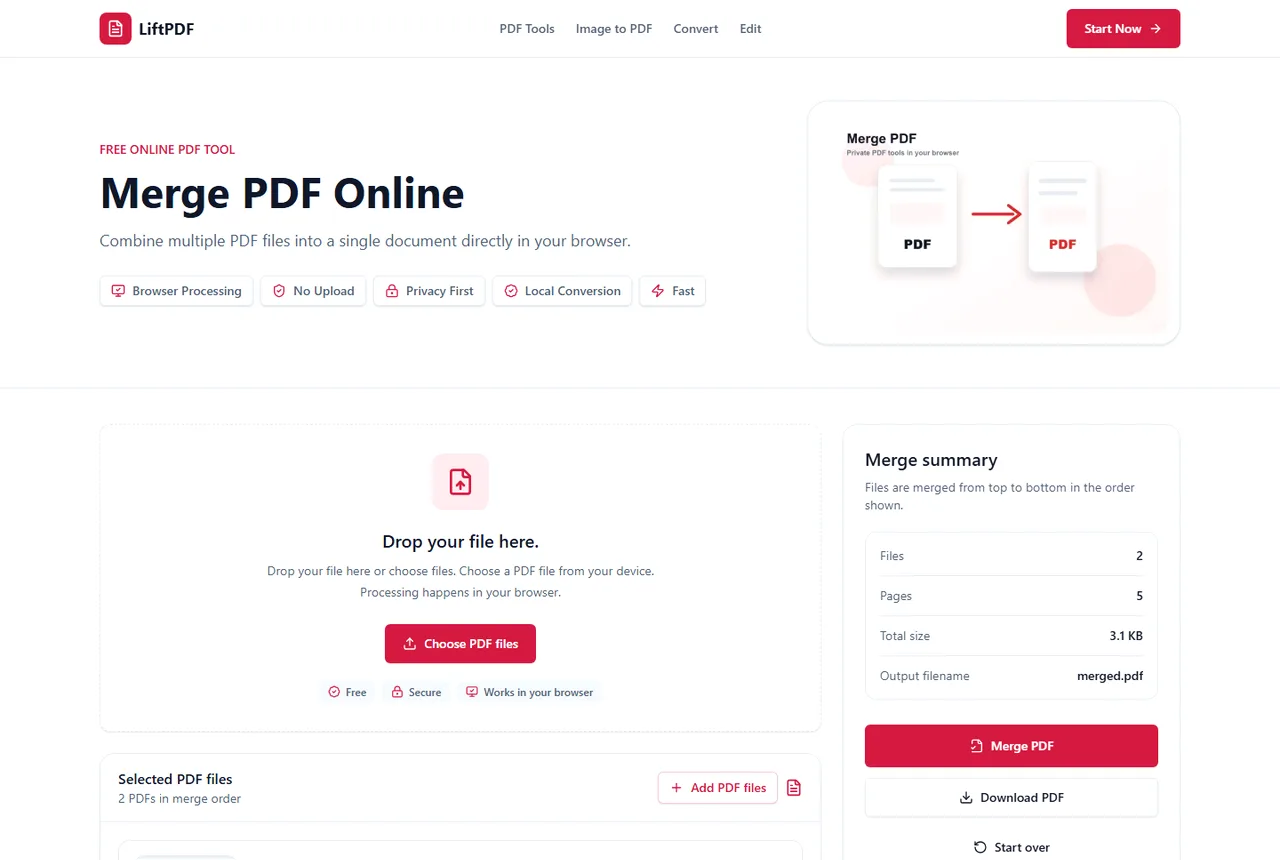
Quick answer
What you need to know first
Merging PDFs means combining two or more PDF documents into one file. The key is to upload the files, check their order, merge them, and download a single PDF that keeps every page in sequence.
- 1Open the Merge PDF tool.
- 2Drop your PDF files into the upload area.
- 3Check the file names, page counts and order.
- 4Move files up or down if the sequence is wrong.
- 5Click Merge PDF and download the combined file.
Visual examples
See the workflow before you use it
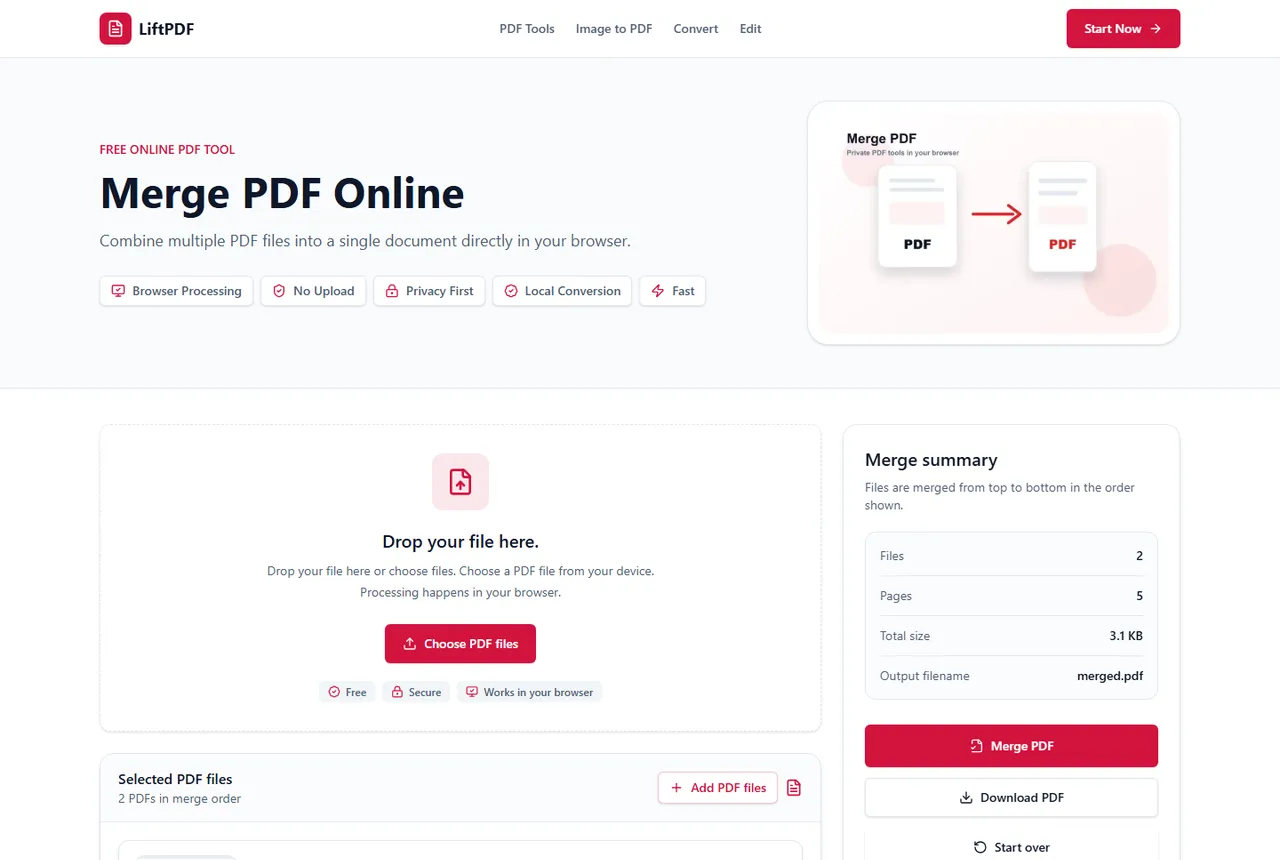
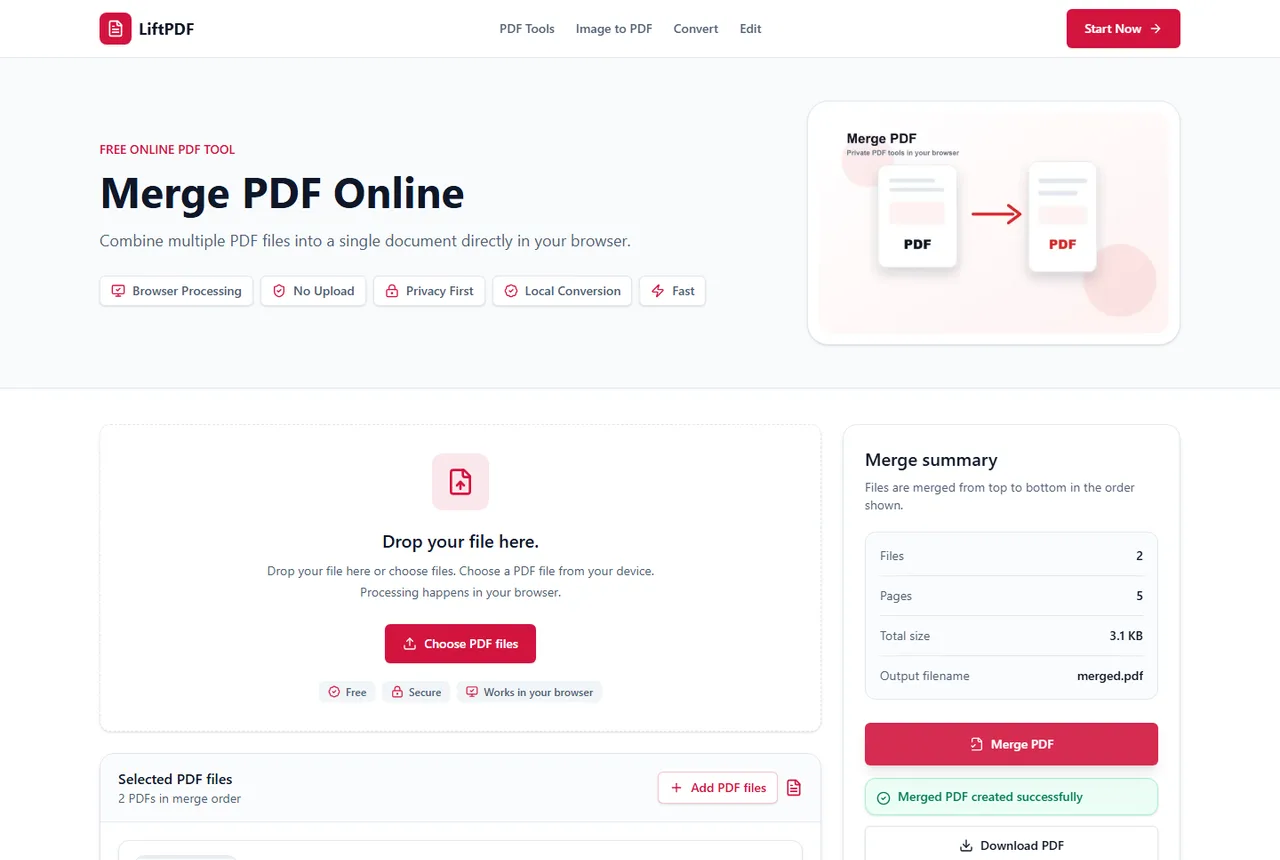
When merging PDFs is the right workflow
Use Merge PDF when related documents should be delivered as a single file. Common examples include a signed form plus supporting pages, multiple invoice PDFs, report chapters, scanned packets, application documents or contract attachments.
A single PDF is easier to email, archive and review than a group of separate attachments. It also prevents recipients from opening files in the wrong order.
The file order controls the final PDF
The most important part of merging PDFs is sequence. The first file becomes the first section of the final PDF, the second file follows it, and so on.
Before you click Merge PDF, check the preview list and move files up or down until the cover page, main document, appendices and attachments are in the right order.
What happens to the original PDFs
The original files are not overwritten. LiftPDF creates a new merged PDF from copies of the pages in your selected files.
If one PDF contains pages that should not be included, remove them first with Delete Pages or save only the pages you need with Extract Pages.
Privacy and browser processing
LiftPDF merges PDFs in your browser for supported files. The pages are copied locally into a new document, so the workflow does not require a document upload API.
That matters for contracts, invoices, reports and personal records. You still need to use good judgment with sensitive files, but avoiding a server upload is a practical privacy advantage.
Example: application packet
Imagine you need to send a signed form, a scan of an ID and two supporting letters. If each file is sent separately, the recipient has to open them in the right order. A merged PDF turns that packet into one reviewable document.
The clean sequence is cover form first, ID second, supporting letters last. If one letter has extra blank pages, delete those pages before merging rather than sending unnecessary pages forward.
Before you merge, check these details
Most merge mistakes are not technical. They are order mistakes, duplicate pages or protected files that cannot be read. A short preflight check prevents the final PDF from looking careless.
- Open each PDF once to confirm it is the right file.
- Remove blank pages before merging if they are not intentional.
- Put cover pages and forms before attachments.
- Unlock password-protected PDFs only if you know the password.
Decision table
Merge or another organize tool?
| Goal | Best tool | Why |
|---|---|---|
| One packet from many PDFs | Merge PDF | Keeps documents together in order. |
| Only selected pages | Extract Pages | Creates a focused copy without extra pages. |
| Remove unwanted pages | Delete Pages | Keeps the remaining document together. |
FAQ
Questions about merging PDFs
Can I merge PDF files for free?
Yes. LiftPDF lets you merge PDF files for free in your browser.
Are my PDFs uploaded to a server?
For supported files, the merge runs locally in your browser. LiftPDF does not need a backend upload API to combine the pages.
Will PDF quality change after merging?
No. LiftPDF copies the original PDF pages into a new document instead of converting them into images.
Can I change the order before merging?
Yes. Reorder the PDF files in the list before exporting. The final PDF follows that order.
Can I merge more than two PDFs?
Yes. You can add multiple PDF files and merge them into one document.
What should I do before merging PDFs?
Check page order, remove unnecessary pages and unlock password-protected files if you have the correct password.
Editorial note
LiftPDF Editorial Team
LiftPDF articles are written against the behavior of the public LiftPDF tools. We avoid fake expert bylines, invented claims and workflows that the product cannot actually perform.
Published Jul 12, 2026. Last updated Jul 16, 2026.