How to Merge Multiple PDF Files
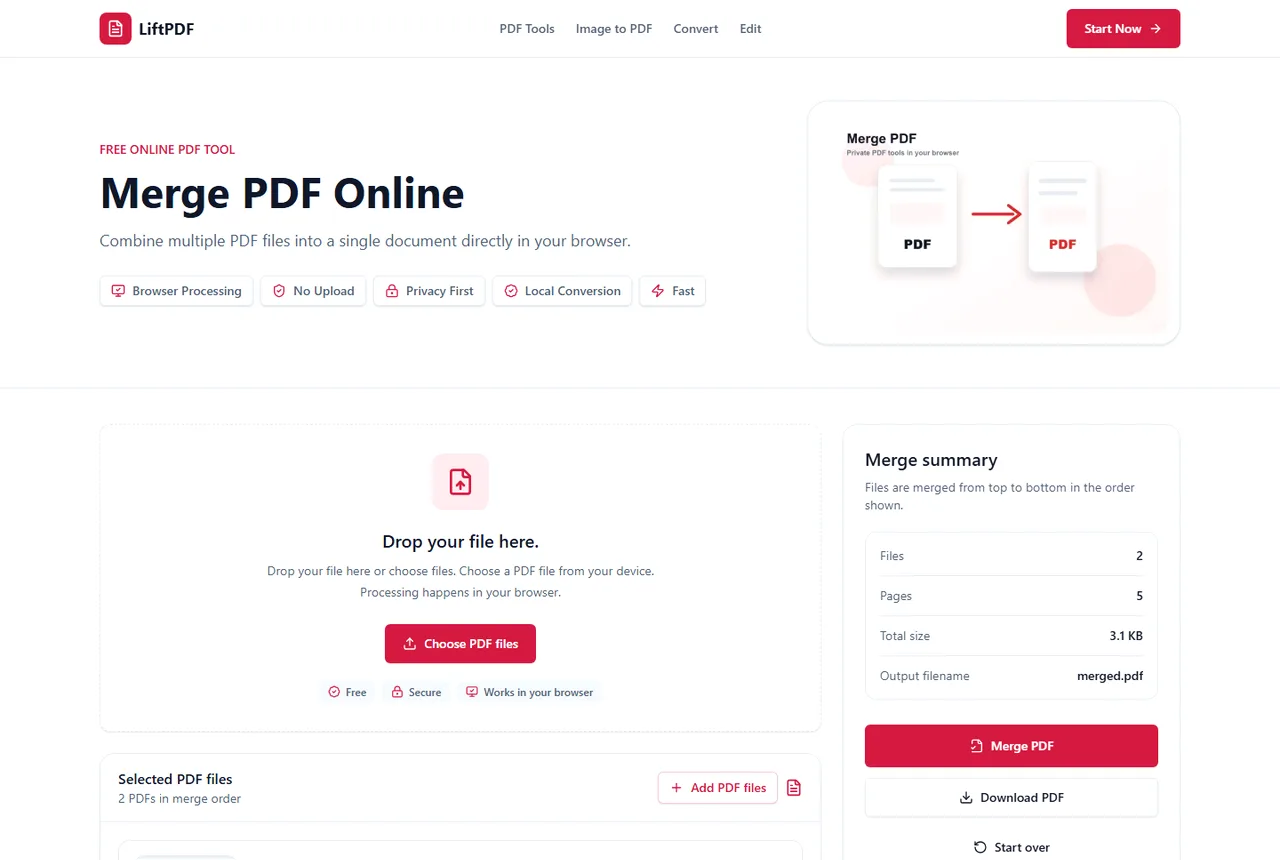
When merging several PDFs, the challenge is not the button. The challenge is keeping the final document organized. Use file order, page counts and previews to confirm the sequence before export.
Quick answer
What you need to know first
When merging several PDFs, the challenge is not the button. The challenge is keeping the final document organized. Use file order, page counts and previews to confirm the sequence before export.
- 1Add every PDF that belongs in the final document.
- 2Review file names, page counts and sizes.
- 3Move files into the final sequence.
- 4Remove duplicates or incorrect files.
- 5Merge and download one PDF.
A clean multi-file merge workflow
Start with the final reading order: cover page, primary document, supporting files, appendices, exhibits and reference material. Then upload files in that order or rearrange them before merging.
For large packets, page counts are useful. They help confirm that the file list matches the expected final document length.
When to split or delete before merging
If one source PDF contains extra pages, remove them first. If only a few pages are needed from a larger source, extract those pages first and merge the extracted result.
This keeps the final PDF shorter and reduces the chance of sending unnecessary pages.
After merging
Check the downloaded PDF before sending it. If the file is too large for email, use Compress PDF. If a section is in the wrong order, use Reorder Pages on the merged file.
Privacy and browser processing
LiftPDF merges PDFs in your browser for supported files. The pages are copied locally into a new document, so the workflow does not require a document upload API.
That matters for contracts, invoices, reports and personal records. You still need to use good judgment with sensitive files, but avoiding a server upload is a practical privacy advantage.
FAQ
Questions about merging PDFs
Can I merge PDF files for free?
Yes. LiftPDF lets you merge PDF files for free in your browser.
Are my PDFs uploaded to a server?
For supported files, the merge runs locally in your browser. LiftPDF does not need a backend upload API to combine the pages.
Will PDF quality change after merging?
No. LiftPDF copies the original PDF pages into a new document instead of converting them into images.
Can I change the order before merging?
Yes. Reorder the PDF files in the list before exporting. The final PDF follows that order.
Is there a best order for multiple PDFs?
Use the order the recipient should read: cover pages first, core document next, supporting documents last.
Can I remove one file before merging?
Yes. Remove any file from the list before clicking Merge PDF.
Editorial note
LiftPDF Editorial Team
LiftPDF articles are written against the behavior of the public LiftPDF tools. We avoid fake expert bylines, invented claims and workflows that the product cannot actually perform.
Published Jul 15, 2026. Last updated Jul 16, 2026.