Merge PDF Online Guide
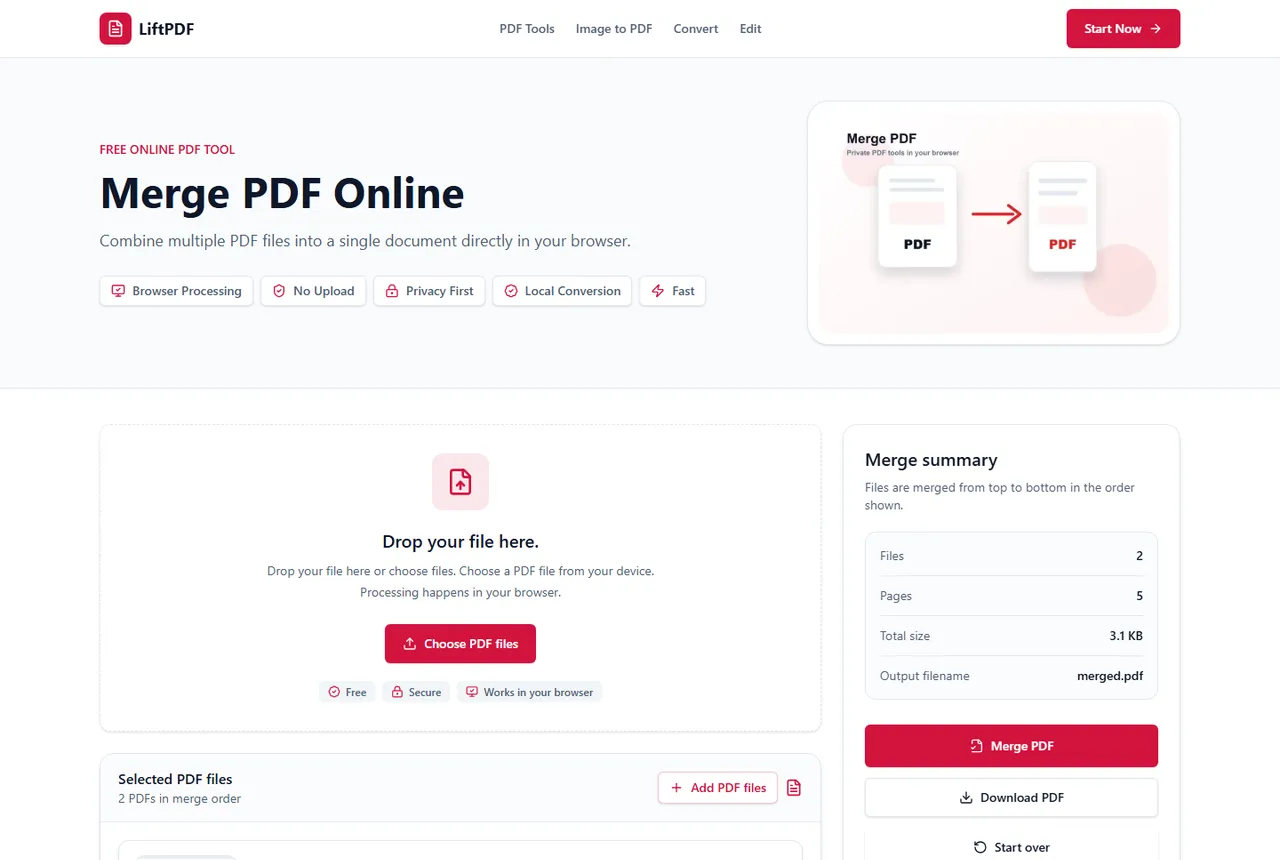
An online PDF merger should be quick, clear and safe. LiftPDF lets you choose files, preview the list, reorder them and create one merged PDF directly in your browser.
Quick answer
What you need to know first
An online PDF merger should be quick, clear and safe. LiftPDF lets you choose files, preview the list, reorder them and create one merged PDF directly in your browser.
- 1Choose PDF files from your device.
- 2Wait for LiftPDF to read page counts and previews.
- 3Confirm the order of the files.
- 4Merge the PDFs locally in the browser.
- 5Download the new merged PDF.
What to expect from a good online PDF merger
A good online merger should make file order obvious, show enough details to avoid mistakes and give a clear download once the merge is complete.
LiftPDF focuses on that simple workflow instead of adding cloud drives, accounts or unrelated editing steps.
The file order controls the final PDF
The most important part of merging PDFs is sequence. The first file becomes the first section of the final PDF, the second file follows it, and so on.
Before you click Merge PDF, check the preview list and move files up or down until the cover page, main document, appendices and attachments are in the right order.
Online does not have to mean uploaded
Many online converters send your documents to a remote server. LiftPDF is built differently for supported files: the browser reads the PDFs and creates the merged file locally.
This is especially useful when you want the convenience of an online tool without adding an unnecessary upload step.
When to use another tool first
Use Compress PDF after merging if the combined file is too large. Use Reorder Pages if the page order inside a PDF is wrong. Use Delete Pages if the source files include blank or duplicate pages.
FAQ
Questions about merging PDFs
Can I merge PDF files for free?
Yes. LiftPDF lets you merge PDF files for free in your browser.
Are my PDFs uploaded to a server?
For supported files, the merge runs locally in your browser. LiftPDF does not need a backend upload API to combine the pages.
Will PDF quality change after merging?
No. LiftPDF copies the original PDF pages into a new document instead of converting them into images.
Can I change the order before merging?
Yes. Reorder the PDF files in the list before exporting. The final PDF follows that order.
Does Merge PDF work in Chrome, Edge, Firefox and Safari?
Yes. The tool is designed for modern browsers on desktop and mobile devices.
Can I merge PDFs without creating an account?
Yes. LiftPDF does not require an account for the current Merge PDF workflow.
Editorial note
LiftPDF Editorial Team
LiftPDF articles are written against the behavior of the public LiftPDF tools. We avoid fake expert bylines, invented claims and workflows that the product cannot actually perform.
Published Jul 15, 2026. Last updated Jul 16, 2026.