How to Organize a PDF Before Printing
Print-ready PDFs should have the right pages, correct order, readable orientation and page numbers added only after the layout is final.
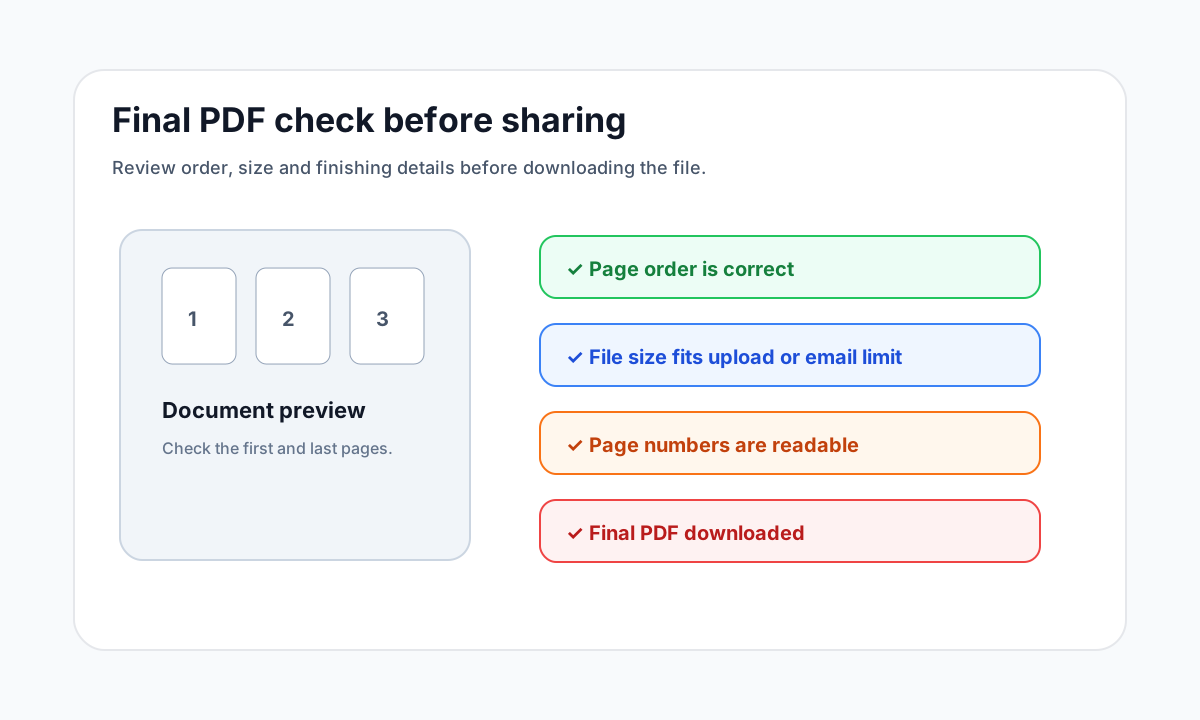
Quick answer
What you need to know first
Before printing, remove blank pages, fix page order, rotate sideways pages and add page numbers only after the document is final.
- 1Remove blank or duplicate pages.
- 2Reorder pages into reading sequence.
- 3Rotate sideways pages.
- 4Add page numbers if the printed packet needs them.
Printing reveals small mistakes
A PDF that looks acceptable on screen can be frustrating on paper if pages are out of order, blank pages waste sheets or scanned pages print sideways.
Do the cleanup before page numbering, watermarking or compression so the final printed PDF is coherent.
Use the smallest necessary tool
You do not need a full editor for every printing problem. Delete blank pages, reorder the sequence or rotate scans depending on the visible issue.
Open organize tools
Merge, split, delete, extract and reorder PDF pages with focused tools.
Organize PDF toolsFAQ
Common questions
Should I compress before printing?
Usually no, unless file size makes the PDF hard to transfer. Compression is not a print-quality improvement.
Should page numbers be added before or after reorder?
After. Numbering should match the final page order.
Editorial note
LiftPDF Editorial Team
LiftPDF articles are written against the behavior of the public LiftPDF tools. We avoid fake expert bylines, invented claims and workflows that the product cannot actually perform.
Published Jul 17, 2026. Last updated Jul 17, 2026.