How to Reduce Scanned PDF File Size
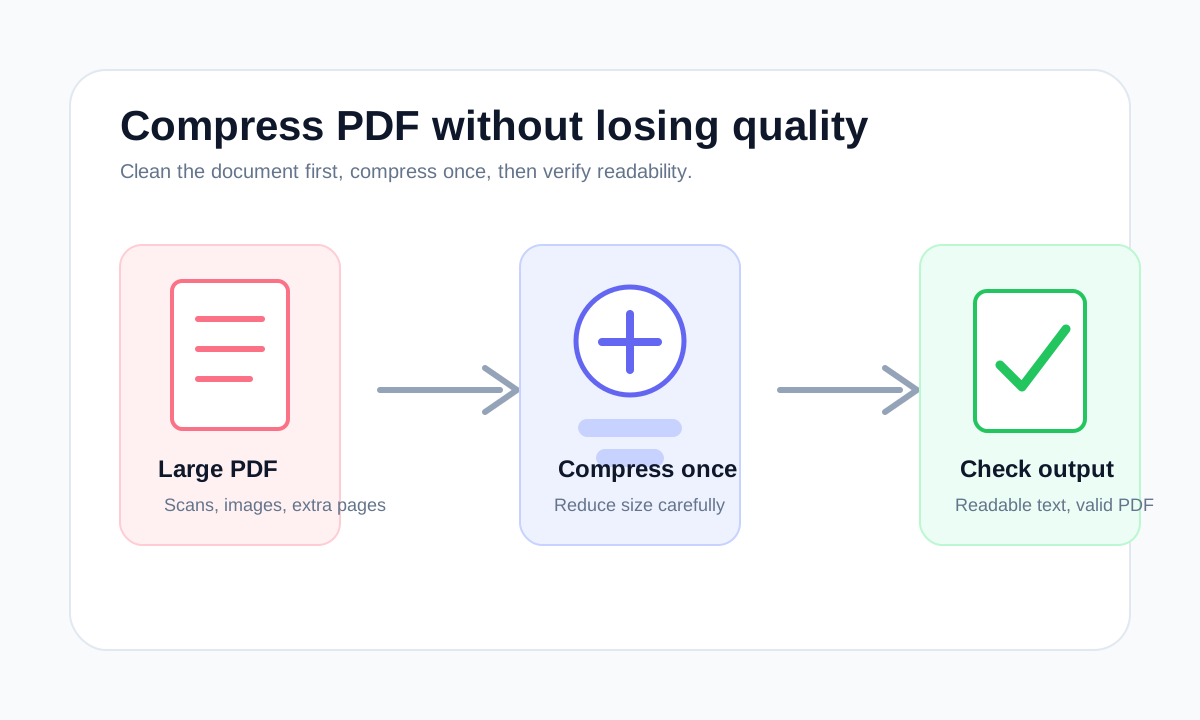
Scanned PDFs are often large because every page is stored as an image. Reduce size carefully and check whether the scan remains readable.
Quick answer
What you need to know first
To reduce a scanned PDF, remove unnecessary scan pages, compress once, and check the smallest text. OCR is separate from compression and is not required just to reduce size.
- 1Identify whether the PDF is image-only.
- 2Delete blank or duplicate scan pages.
- 3Compress the scanned PDF once.
- 4Review signatures, stamps and small print.
Visual examples
See the workflow before you use it
Why scans are heavy
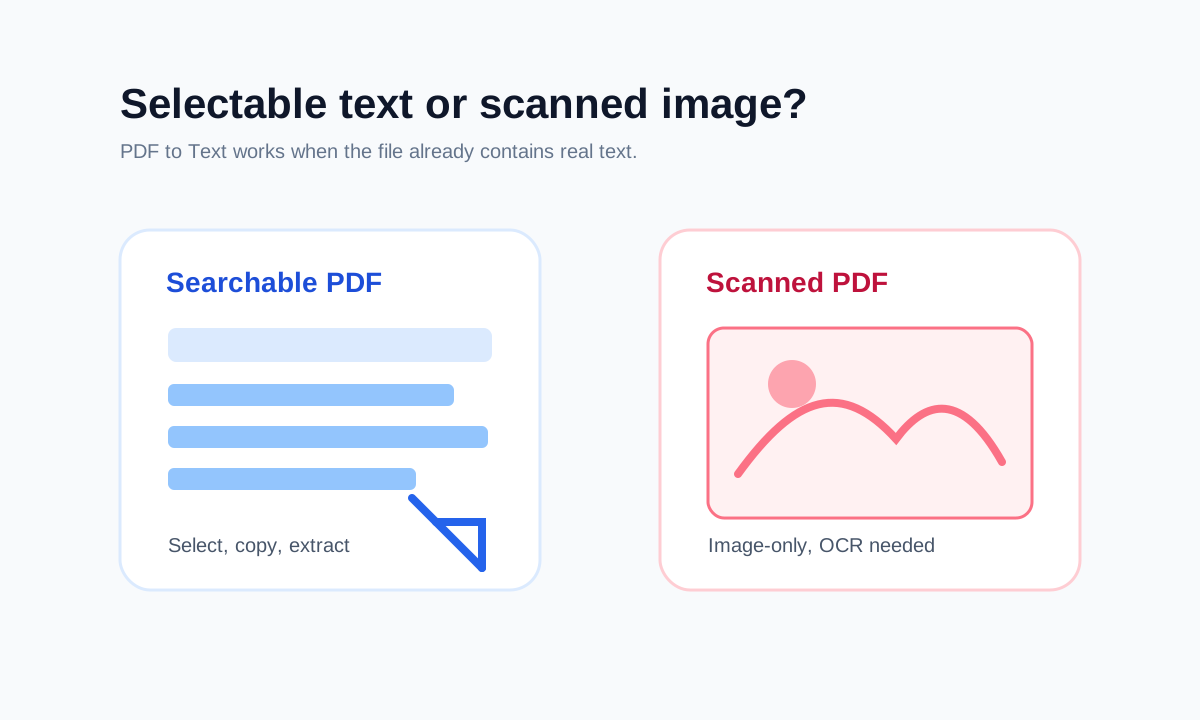
A scanned PDF can look like a normal document, but each page may be a full-page image. High-resolution color scans are especially large because the PDF stores a lot of pixel data.
Compression can reduce that data, but too much compression can blur small text. For official documents, readability is more important than chasing the lowest file size.
OCR is a different problem
OCR can make scanned text searchable, but it does not automatically make a PDF smaller. If your goal is file size, focus on page count and image compression first.
FAQ
Common questions
Can LiftPDF OCR scanned PDFs?
No. LiftPDF currently extracts selectable text only and does not add OCR text layers to scanned documents.
Why is a one-page scan so large?
The page may be a high-resolution color image. A single scan can be larger than many pages of selectable text.
Editorial note
LiftPDF Editorial Team
LiftPDF articles are written against the behavior of the public LiftPDF tools. We avoid fake expert bylines, invented claims and workflows that the product cannot actually perform.
Published Jul 17, 2026. Last updated Jul 17, 2026.