How to Rotate Scanned PDF Pages
Scanned PDF pages can appear sideways after scanning. Rotate the affected pages before sharing or adding page numbers.
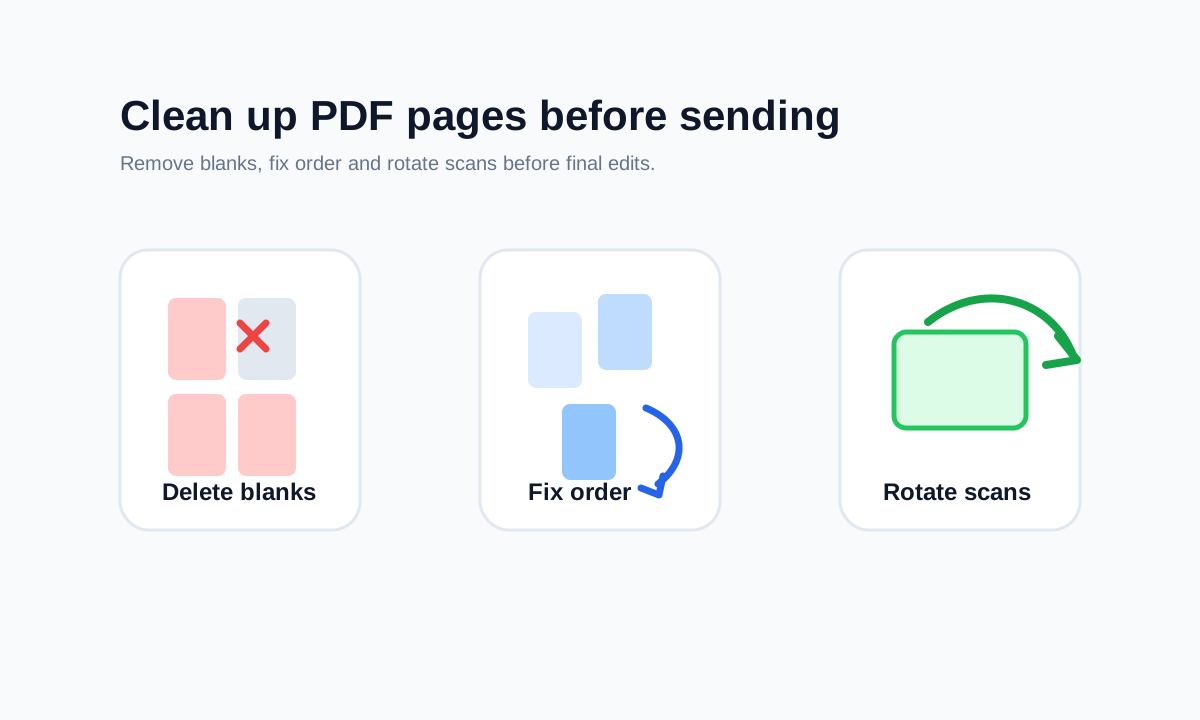
Quick answer
What you need to know first
Upload the scanned PDF, rotate individual pages or all pages, then download a corrected copy.
- 1Open Rotate PDF.
- 2Upload the scanned document.
- 3Rotate selected pages by 90, 180 or 270 degrees.
- 4Download and inspect the corrected PDF.
Why scans rotate incorrectly
Scanner apps and office scanners can detect orientation incorrectly, especially with handwritten notes, receipts or pages with little text.
Rotating a PDF page changes how it displays. It does not perform OCR or rewrite the scanned content.
Rotate before final edits
Fix orientation before adding page numbers or watermarks. That keeps those edits aligned with the final page direction.
Open organize tools
Merge, split, delete, extract and reorder PDF pages with focused tools.
Rotate PDFFAQ
Common questions
Can I rotate only one page?
Yes. Rotate individual pages when only part of the PDF is sideways.
Does rotating reduce quality?
Rotation changes page orientation. It should not require image recompression for normal PDF page rotation.
Editorial note
LiftPDF Editorial Team
LiftPDF articles are written against the behavior of the public LiftPDF tools. We avoid fake expert bylines, invented claims and workflows that the product cannot actually perform.
Published Jul 17, 2026. Last updated Jul 17, 2026.