How to Save Selected Pages From a PDF
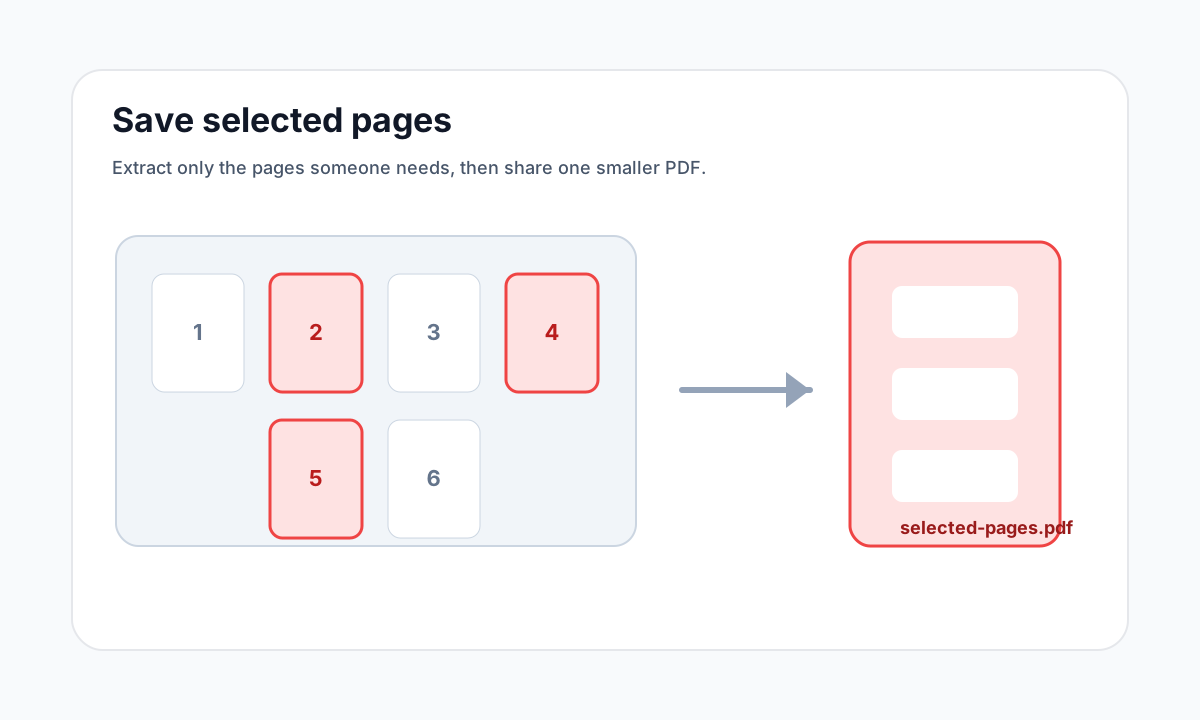
Use Extract Pages when the selected pages should become one clean PDF copy and the original file should remain unchanged.
Quick answer
What you need to know first
Upload the PDF, select the pages you want to keep, extract them and download a new PDF containing only those selected pages.
- 1Open Extract Pages.
- 2Upload the PDF.
- 3Select one or more pages.
- 4Download the extracted PDF.
Selected pages are a copy
Extracting selected pages creates a new PDF. It does not delete pages from the original file, which makes it safer for sending only a section of a larger document.
This workflow is common for invoices, contracts, reports, permits and application packets.
Check thumbnails before exporting
Cover pages, blank scan pages and appendices can shift page numbers. Use visual previews when available so the selected pages match the content you intend to send.
Open organize tools
Merge, split, delete, extract and reorder PDF pages with focused tools.
Extract PagesFAQ
Common questions
Can I save just one page?
Yes. Select one page and extract it as a new one-page PDF.
Is this the same as Delete Pages?
No. Extract Pages keeps selected pages. Delete Pages removes selected pages from the output copy.
Editorial note
LiftPDF Editorial Team
LiftPDF articles are written against the behavior of the public LiftPDF tools. We avoid fake expert bylines, invented claims and workflows that the product cannot actually perform.
Published Jul 17, 2026. Last updated Jul 17, 2026.