Why Are My PDF to JPG Images Blurry?
Blurry PDF to JPG exports usually come from low render quality, small source scans, JPG compression or enlarging the output after export.
Quick answer
What you need to know first
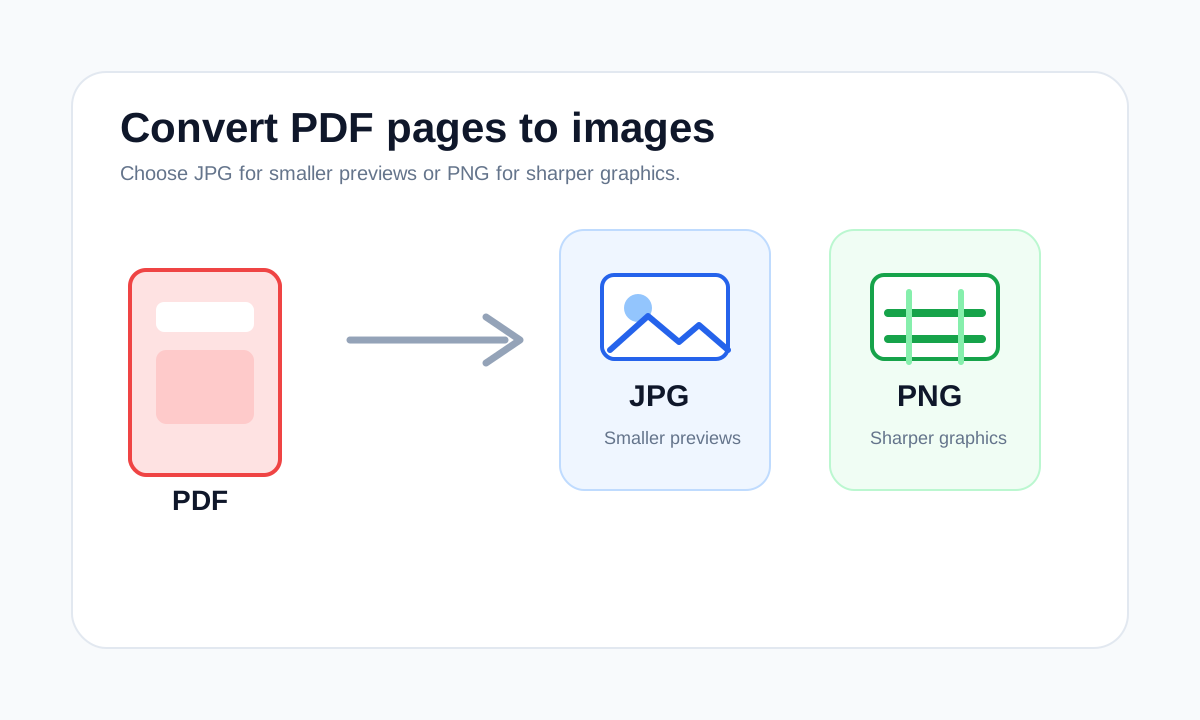
Use high quality when exporting, avoid enlarging the JPG afterward, and consider PNG if the page has small text or sharp diagrams.
- 1Export at High quality when readability matters.
- 2Open the JPG at actual size before judging sharpness.
- 3Use PNG for screenshots or text-heavy pages.
- 4Keep the original PDF if you need selectable text.
JPG is not always the sharpest output
JPG is designed for photographic compression. It can create visible artifacts around text, lines and flat-color shapes. If the PDF page is mostly a screenshot, chart or form, PNG may look cleaner.
Another common issue is zooming in too far after export. Once the PDF page becomes a raster image, enlarging it reveals pixels.
Scanned PDFs have their own limits
If the original PDF page is a low-resolution scan, exporting it as JPG cannot recover detail. The source scan decides the maximum sharpness available.
FAQ
Common questions
Will High quality always fix blur?
No. It helps with rendering quality, but it cannot restore detail missing from the original PDF or scan.
Should I use PNG instead?
Use PNG when the page has small text, diagrams or screenshots and file size is less important.
Editorial note
LiftPDF Editorial Team
LiftPDF articles are written against the behavior of the public LiftPDF tools. We avoid fake expert bylines, invented claims and workflows that the product cannot actually perform.
Published Jul 17, 2026. Last updated Jul 17, 2026.