How to Extract Pages From a Password Protected PDF
If a PDF is encrypted, you need the correct password before extracting pages. LiftPDF does not bypass passwords; it only works with files you can legally open.
Quick answer
What you need to know first
If a PDF is encrypted, you need the correct password before extracting pages. LiftPDF does not bypass passwords; it only works with files you can legally open.
- 1Confirm that you have permission to open the PDF.
- 2Use Unlock PDF with the correct password.
- 3Download the unlocked copy.
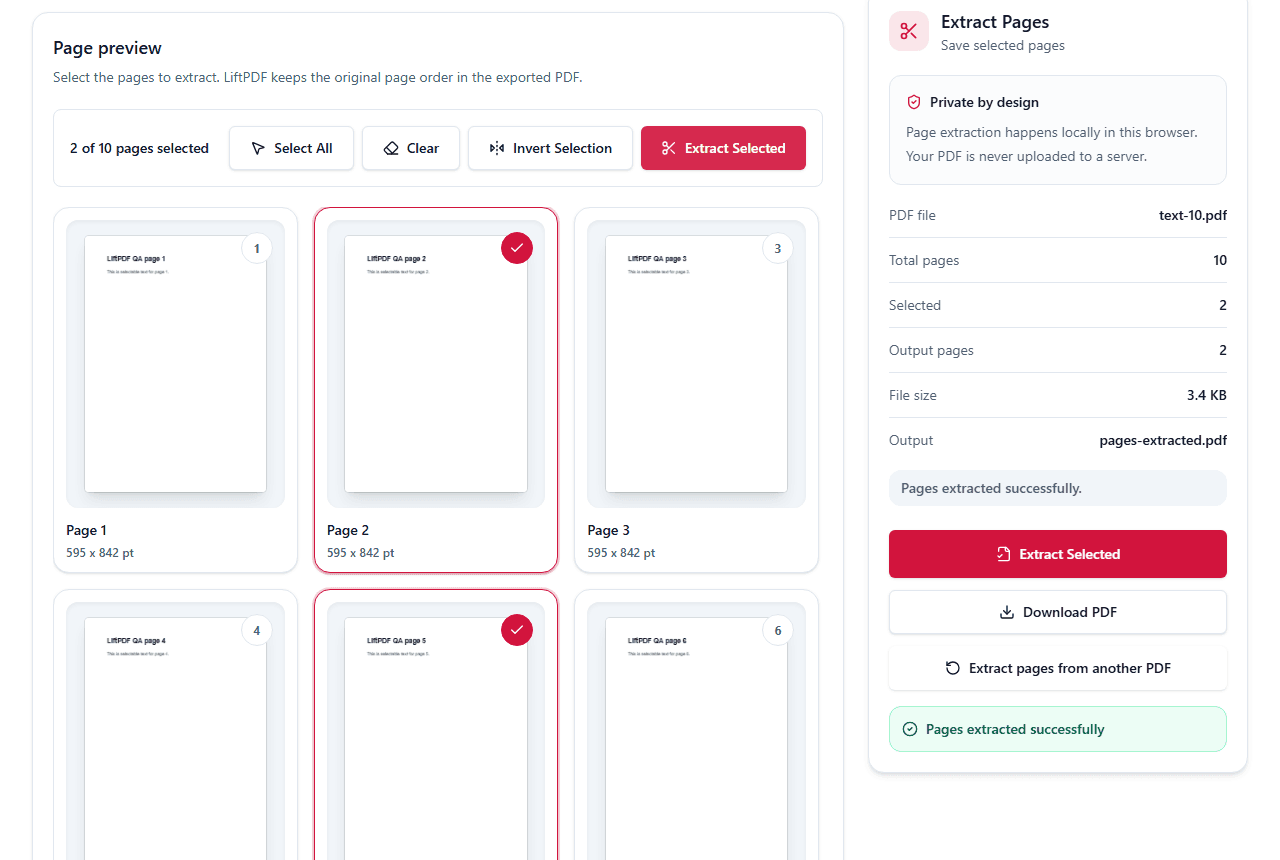
- 4Open Extract Pages.
- 5Select and export the pages you need.
Why extraction can fail on protected PDFs
Password protection prevents unauthorized access to the PDF content. A page extractor cannot safely copy pages from a file it cannot read.
That is why the correct workflow is to unlock the PDF first with the password, then extract the pages from the unlocked copy.
What LiftPDF will not do
LiftPDF does not recover lost passwords, bypass encryption or remove restrictions without authorization.
This is intentional. A trustworthy PDF tool should not pretend that password protection can be ignored.
After unlocking
Once the file opens normally, you can use Extract Pages to select the pages you need and save them into a new PDF.
If the document is sensitive, use browser-based tools and avoid uploading files unnecessarily.
Extract pages now
Use the visual page picker to save selected pages into a new PDF.
Unlock then extract pagesFAQ
Questions about this workflow
Can I extract pages without knowing the password?
No. You need the correct password or an unlocked copy of the PDF.
Does LiftPDF bypass PDF passwords?
No. LiftPDF only unlocks PDFs when you provide the correct password.
Should I protect the extracted PDF again?
If the extracted pages are sensitive, use Protect PDF after extraction to add password encryption to the new file.
Editorial note
LiftPDF Editorial Team
LiftPDF articles are written against the behavior of the public LiftPDF tools. We avoid fake expert bylines, invented claims and workflows that the product cannot actually perform.
Published Jul 15, 2026. Last updated Jul 16, 2026.