How to Extract Pages From a Scanned PDF
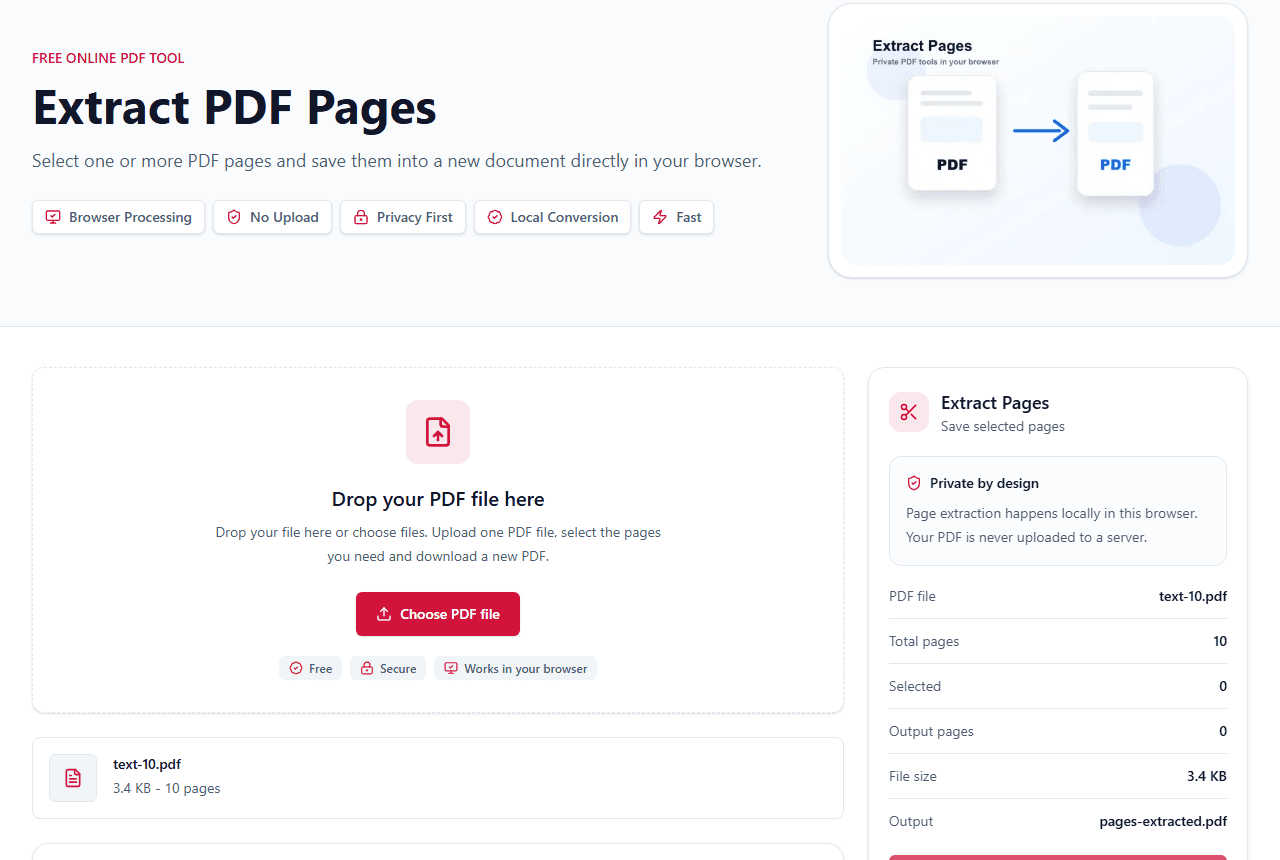
You can extract whole pages from a scanned PDF because the page is copied as part of the PDF. OCR is only needed if you want to extract editable text from the scanned image.
Quick answer
What you need to know first
You can extract whole pages from a scanned PDF because the page is copied as part of the PDF. OCR is only needed if you want to extract editable text from the scanned image.
- 1Upload the scanned PDF.
- 2Wait for page thumbnails.
- 3Select the scanned pages you need.
- 4Export a new PDF.
- 5Use OCR later only if you need selectable text.
Page extraction is not OCR
A scanned PDF usually contains images of pages. Extracting pages copies those pages into a new PDF, but it does not convert the image into editable text.
This is still useful when you need to share only a few scanned pages from a larger packet.
Why scanned pages may look blank
If a scan is damaged, unusually encoded or protected, the preview may fail or appear blank. Try opening the file in a PDF viewer first to confirm the page itself is readable.
If the PDF is password protected, unlock it before extraction.
When you need OCR
Use OCR when you need selectable or searchable text from scanned pages. Extract Pages is for copying whole pages, not recognizing words inside images.
Extract pages now
Use the visual page picker to save selected pages into a new PDF.
Extract scanned PDF pagesFAQ
Questions about this workflow
Can I extract scanned pages?
Yes. You can select and copy whole scanned pages into a new PDF.
Will the extracted scanned PDF become searchable?
No. Page extraction does not add OCR. The page remains image-based unless OCR is applied separately.
Can I extract text from a scanned PDF?
Not with Extract Pages. Use OCR for scanned text, or PDF to Text for PDFs that already contain selectable text.
Editorial note
LiftPDF Editorial Team
LiftPDF articles are written against the behavior of the public LiftPDF tools. We avoid fake expert bylines, invented claims and workflows that the product cannot actually perform.
Published Jul 15, 2026. Last updated Jul 16, 2026.