How to Copy Text From a PDF
If a PDF contains selectable text, you can extract and copy it. If it is image-only, OCR is required before text can be copied.
Quick answer
What you need to know first
Use PDF to Text for selectable text. If no selectable text is found, the PDF may be scanned or image-based and needs OCR, which LiftPDF does not pretend to perform.
- 1Open PDF to Text.
- 2Upload the PDF.
- 3Extract existing selectable text.
- 4Copy the result or download a TXT file.
Visual examples
See the workflow before you use it
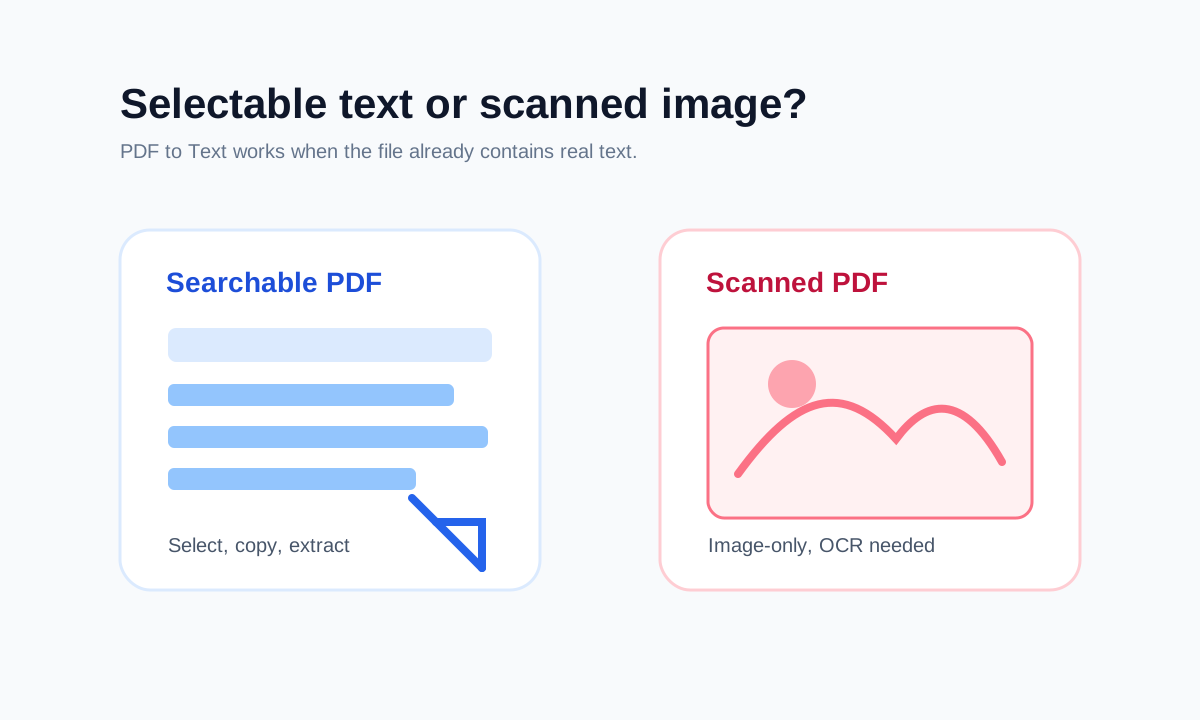
Selectable text versus image text
A PDF can look like text while actually containing a page image. Normal text extraction only works when the PDF contains text objects or an OCR text layer.
LiftPDF clearly separates those cases. It extracts text that is already present and tells you when OCR is required.
Copying is not the same as converting to Word
Copying text gives you the readable text content. It does not preserve complex Word layout, columns, tables or precise formatting.
Decision table
Can the text be copied?
| What you see | Likely file type | Next step |
|---|---|---|
| Words highlight individually | Searchable PDF | Use PDF to Text or copy normally. |
| Whole page selects as an image | Scanned PDF | OCR is required. |
| Password prompt appears | Protected PDF | Unlock with the known password first. |
Open conversion tools
Convert between PDF, images and text with browser-based LiftPDF tools.
Extract PDF textFAQ
Common questions
Can I copy text from a scanned PDF?
Only after OCR has created selectable text. Image-only scans do not contain text that a normal extractor can copy.
Does PDF to Text preserve formatting?
It preserves readable page separation, but it is not a full layout conversion tool.
Editorial note
LiftPDF Editorial Team
LiftPDF articles are written against the behavior of the public LiftPDF tools. We avoid fake expert bylines, invented claims and workflows that the product cannot actually perform.
Published Jul 17, 2026. Last updated Jul 17, 2026.