How to Tell If a PDF Is Scanned
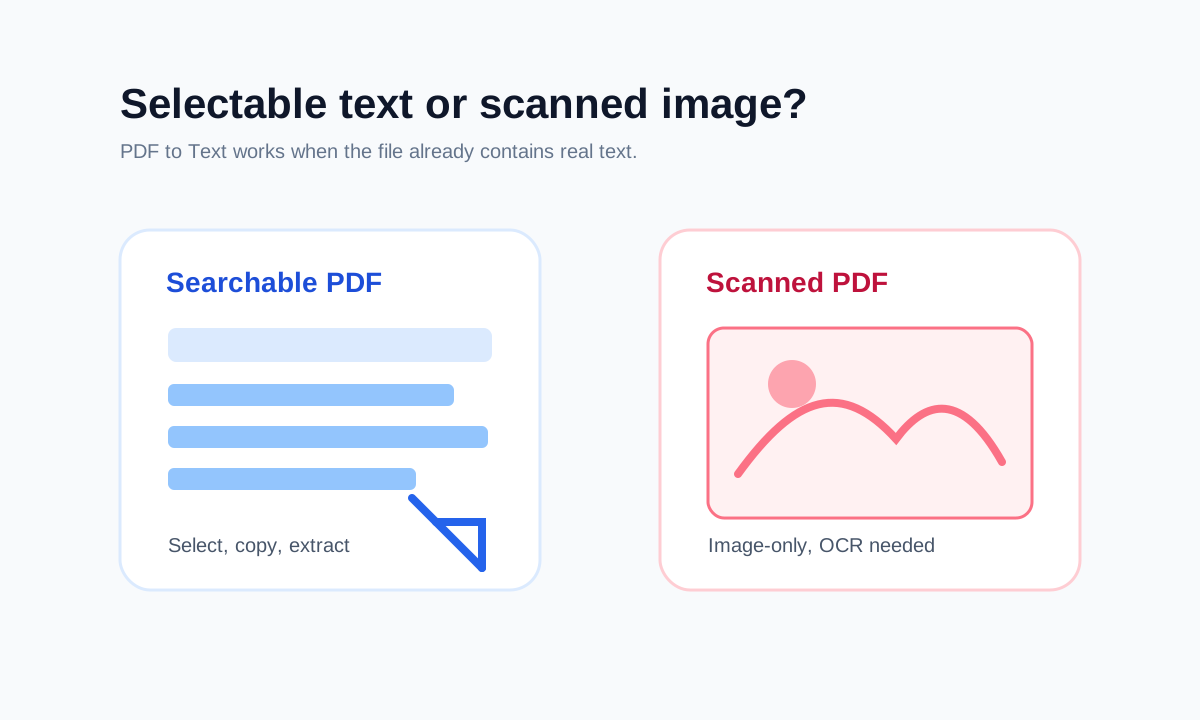
A scanned PDF usually behaves like a picture of a page. A searchable PDF lets you select and copy words.
Quick answer
What you need to know first
Try selecting a word. If the page selects as one image or nothing selectable appears, the PDF is likely scanned or image-only.
- 1Open the PDF in a viewer.
- 2Try selecting one word.
- 3Search for a word you can see on the page.
- 4Use PDF to Text only if text is selectable.
Simple tests that work
The fastest test is text selection. Search is another clue: if the viewer cannot find a word that is visibly on the page, the PDF may not contain a text layer.
Some PDFs contain both a scanned image and OCR text. Those are searchable PDFs even though the visual page still looks like a scan.
Why it matters
Text extraction, copy workflows and search depend on selectable text. Image-only scans need OCR before they behave like searchable documents.
Choose the right PDF tool
Use the guide to understand the file, then choose the smallest LiftPDF workflow that solves the task.
Check PDF textFAQ
Common questions
Can a scanned PDF be searchable?
Yes, if OCR has added a text layer behind the scanned page image.
Does file size reveal whether a PDF is scanned?
Not reliably. Scans are often larger, but file size alone is not proof.
Editorial note
LiftPDF Editorial Team
LiftPDF articles are written against the behavior of the public LiftPDF tools. We avoid fake expert bylines, invented claims and workflows that the product cannot actually perform.
Published Jul 17, 2026. Last updated Jul 17, 2026.