How to Split a PDF by Page Range
Page ranges let you export only the sections you need without manually deleting every other page.
Quick answer
What you need to know first
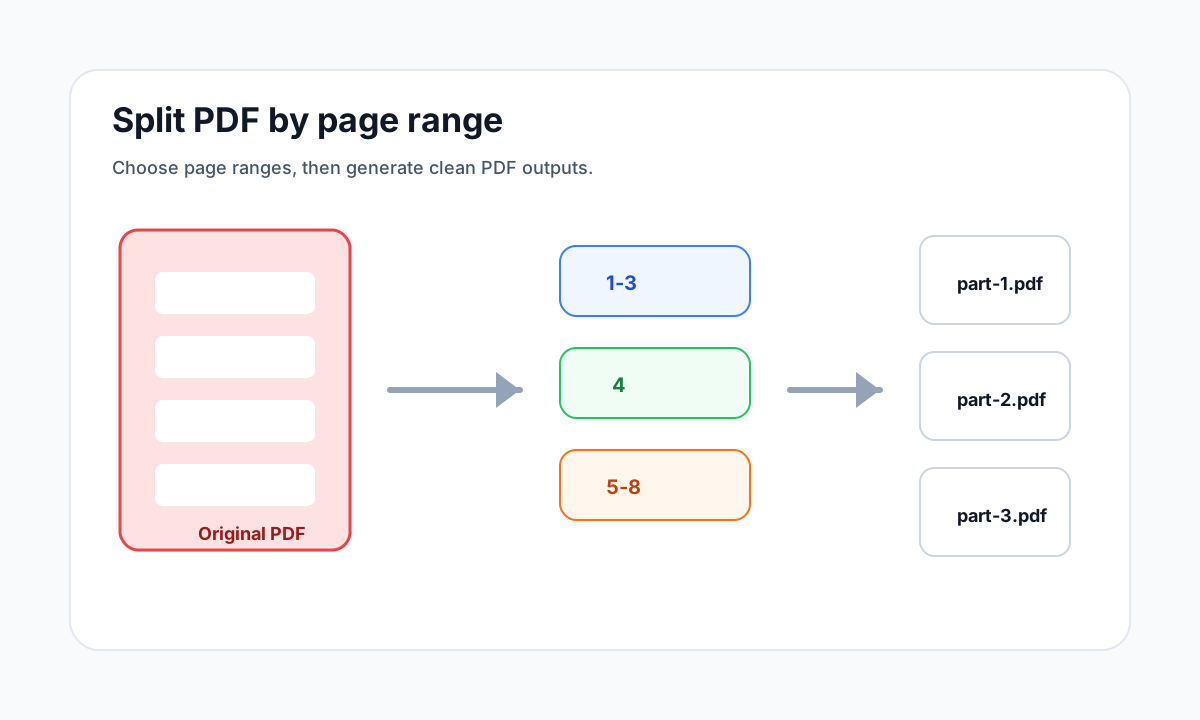
Use range syntax like 1-3, 5, 8-10, check that every page exists, then split the PDF into the selected range output.
- 1Upload the PDF to Split PDF.
- 2Choose Extract page ranges.
- 3Enter a range such as 1-3, 5, 8-10.
- 4Download the resulting PDF or ZIP.
Range syntax should stay simple
Most users only need individual pages, continuous ranges or a comma-separated mix. A clear input such as 1-3, 5, 8-10 is easier to verify than complex rules.
Before exporting, check the PDF page count. A range that includes a page outside the document should be blocked rather than silently ignored.
Use ranges for sections
Page ranges are useful for reports, contracts, books and application packets where only one section must be shared.
FAQ
Common questions
Can I enter multiple ranges?
Yes. Use commas to combine ranges and single pages, for example 1-2, 5, 9-12.
What happens if the range is invalid?
LiftPDF validates the range and shows an error instead of creating a misleading output.
Editorial note
LiftPDF Editorial Team
LiftPDF articles are written against the behavior of the public LiftPDF tools. We avoid fake expert bylines, invented claims and workflows that the product cannot actually perform.
Published Jul 17, 2026. Last updated Jul 17, 2026.