How to Split a PDF Into Separate Pages
Split every page when each page needs to become its own PDF. Use Extract Pages when selected pages should stay together in one file.
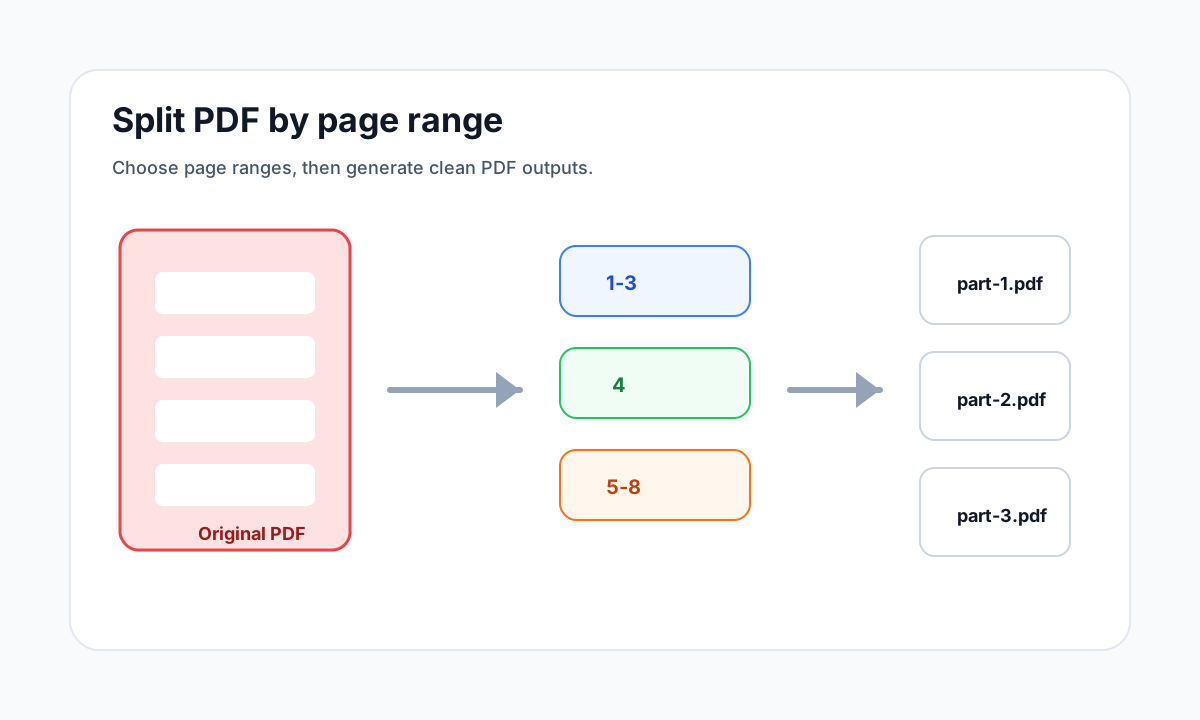
Quick answer
What you need to know first
Upload the PDF to Split PDF, choose Split every page, generate the output and download the ZIP containing one PDF per page.
- 1Open Split PDF.
- 2Upload the PDF.
- 3Choose Split every page.
- 4Download the ZIP with separate page PDFs.
When separate pages make sense
Separate page files are useful when a form, packet or scan needs to be distributed page by page. It is different from extracting a few pages into one smaller document.
If the recipient needs one focused PDF, use Extract Pages. If your workflow needs many individual files, split every page.
Why multiple outputs download as ZIP
A browser should not trigger dozens of individual downloads at once. A ZIP keeps all split pages together and preserves the page files in one package.
FAQ
Common questions
Will splitting change the original PDF?
No. LiftPDF creates new output files and leaves the original PDF unchanged.
What if I only need pages 2 to 5?
Use Extract page ranges instead of splitting every page.
Editorial note
LiftPDF Editorial Team
LiftPDF articles are written against the behavior of the public LiftPDF tools. We avoid fake expert bylines, invented claims and workflows that the product cannot actually perform.
Published Jul 17, 2026. Last updated Jul 17, 2026.